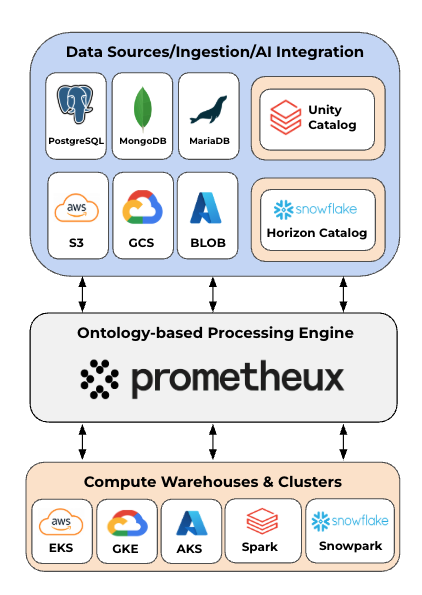
Connecting to Databases and External Datasources
With connectors available for databases and support for data sources, Prometheux can be used to seamlessly integrate and migrate data across various platforms. Moreover, it supports cloud and distributed file systems like S3 and HDFS, providing the flexibility needed for modern data lake and data migration scenarios.
@bind options
The bind command allows for the configuration of reading from and writing to database and datasources.
The syntax is as follows:
@bind("concept_name",
"datasource_type option_1 = 'value_1', option_2 = 'value_2', …, option_n = 'value_n'",
"database_name",
"table_name").
Critical syntax requirements for @bind annotations:
- Options must be comma-separated:
option1='value1', option2='value2' - Values must be quoted:
host='localhost'nothost=localhost - Use
username=notuser=for database authentication - Must end with a dot:
@bind(...).
✅ Correct PostgreSQL example:
@bind("employees", "postgresql host='localhost', port=5432, username='postgres', password='mypass'", "company_db", "employees").
❌ Common mistakes:
@bind("employees", "postgresql host=localhost port=5432 user=postgres password=mypass", "company_db", "employees"). // Missing commas and quotes
@bind("employees", "postgresql", "host='localhost', port=5432", "employees") // Wrong parameter placement
where datasource_type should be one of:
csvfor CSV filesparquetfor Parquet filesexcelfor Excel filesjsonfor JSON filespostgresqlfor PostgreSQL databasesneo4jfor Neo4j databasesdb2for DB2 databasesmariadbfor MariaDB databasesoraclefor Oracle databasessqlitefor SQLite databasesmysqlfor MySQL databasessqlserverfor SQL Server databasesh2for H2 databasessybasefor Sybase databasesteradatafor Teradata databasesredshiftfor Redshift databasesbigqueryfor Google BigQueryhivefor Hiveprestofor Prestosnowflakefor Snowflakedatabricksfor Databricksdynamodbfor Amazon DynamoDBapifor consuming data via APItextfor consuming data from plain text filesbinaryfor consuming data from binary files (PDF, images, etc)
And the available configuration options are:
url: URL to use for the database connection (e.g.jdbc:postgresql://localhost:5432/prometheux)protocol: Protocol to use for the database connection (e.g.jdbc,odbc,jdbc-odbc,bolt)host: Database host (e.g.localhost)port: Database port (e.g.,5432for postgres,7678for neo4j)database: Database name (e.g.prometheux)username: Username to login with.password: Password to login with.
Configuring credential access
Sensitive credentials such as database connection details (e.g., username, password) or AWS credentials (e.g., accessKey, secretKey) can be specified directly as options in the @bind annotations. Example:
@bind("concept_name",
"datasource_type option_1 = 'value_1', option_2 = 'value_2', …, option_n = 'value_n'",
"database_name",
"table_name").
This method allows for streamlined integration within the same code, ensuring that each datasource has its necessary credentials attached during the binding process.
However, for better security and flexibility, these credentials can also be stored in external configurations:
- Credentials can be stored the
px.propertiesfile to centralize sensitive information and allow reusability without hardcoding values within the @bind annotations. - REST APIs for dynamic configuration management, where you can set individual credentials or update multiple settings at once through API endpoints.
CSV Datasource
Prometheux supports CSV files as data source, both for reading and writing.
The default CSV binding ("csv") is thus suitable for processing big CSV files.
It does not make a guess about the input schema. Therefore, if no schema
(@mapping) is provided, all fields are treated as
strings. Values \N are treated as null values and interpreted as Labelled
Nulls while reading the CSV file.
@bind options
The bind command allows for the configuration of reading and writing csv files. The syntax is as follows:
@bind("relation",
"csv option_1 = 'value_1', option_2 = 'value_2', …, option_n = 'value_n'",
"filepath",
"filename").
The options that are available are
useHeaders: Values can betrueorfalse, depending on whether a header is available/output.delimiter: Specifies the character that is used to separate single entriesrecordSeparator: Specifies how the record are seperatedquoteMode: Defines quoting behavior. Possible values are:all: Quotes all fields.minimal: Quotes fields which contain special characters such as a the field delimiter, quote character or any of the characters in the line separator string.non_numeric: Quotes all non-numeric fields.none: Never quotes fields.
nullString: Value can be any string, which replaces null values in the csv file.selectedColumns: Value is a list of the form[c1;…;cn]to select only the columnsc1, …,cnfrom the csv file.- Each value in the list is either a column name (enclosed with single quotes 'column name') which is present in the csv's header, or is an integer starting from 0 denoting the column index.
- It is also possible to specify ranges; e.g.
selectedColumns=[0:4]reads only the five columns0,1,2,3,4. - It is allowed to mix the values in the list, e.g.
selectedColumns=[0:3;Column_5]would select columns0,1,2,3and the column with the nameColumn_5. - Note that in order to select columns by name, a header line in the csv must be present.
multiline: Handles multi-line fields. When multiline is set to true it handles fields that span multiple lines correctlyquery: perform aSELECTquery over a CSV file. If you are familiar with SQL syntax, you can leverage that to query the CSV file. The fields of the select are the one of the first line of the CSV file.coalesce: Unifies the output in one partition. The output will be a single CSV file instead of partitioned CSV files. Supported only in standalone environments.
When specifying a configuaration, any subset of these options can be set at the
same time. Each value has be surrounded by single quotation marks 'value'. An
example for a csv bind command with configuration would be the following:
@bind("relation",
"csv useHeaders=false, delimiter='\t', recordSeparator='\n',
query='select Name from users'",
"filepath",
"filename").
Examples
In the examples below we use a sample CSV file with the following content:
a,b,c
d,e,f
Simply reading a csv file into a relation:
@bind("myCsv", "csv", "/path_to_csv/folder", "csv_name.csv").
myAtom(X,Y,Z) :- myCsv(X,Y,Z).
@output("myAtom").
We can also map the columns:
@bind("myCsv", "csv useHeaders=true", "/path_to_csv/folder", "csv_name.csv").
@mapping("myCsv", 0, "var1", "string").
@mapping("myCsv", 1, "var2", "string").
@mapping("myCsv", 2, "var3", "string").
myAtom(X,Y,Z) :- myCsv(X,Y,Z).
@output("myAtom").
Example for selectedColumns
The following reads only the the four columns with indices 0,1,2,4 from the
CSV file, excluding the column 3.
@bind("myCsv", "csv selectedColumns=[0:2; 4]", "/path_to_csv/folder", "csv_name.csv").
withoutThree(W, X,Y,Z) :- myCsv(W, X,Y,Z).
@output("withoutThree").
To store results into another CSV file, you must bind the entry point. In this example, we read a CSV file, perform a SQL query to select Name, Surname and Age of users without mapping annotations and write the output into another CSV file:
% Define the data source as a CSV file named "users.csv" located in "/path_to_csv/folder"
% The file contains columns "Name", "Surname", "Age" and potentially other fields. Perform a `select` query over the CSV file and filter and only records where "Age > 10", which are loaded into the "user" relation.
@bind("user", "csv query='select Name,Surname,Age from user where Age > 10'", "/path_to_csv/folder", "users.csv").
% Define a new relation "user_name_surname" that selects users from the "user" relation
% with an additional condition that their "Age" is less than 5. This relation returns the
% "Name", "Surname", and "Age" of users.
user_name_surname(X,Y,Z) :- user(Name,Surname,Age), Age < 5.
% Declare that the results of "user_name_surname" will be written to an output.
@output("user_name_surname").
% Bind the "user_name_surname" relation to output partitioned CSV files in a folder named "new_users"
% in the folder "/another_csv_path/folder/output".
@bind("user_name_surname", "csv", "/another_csv_path/folder/output", "new_users").
Parquet Datasource
Parquet is a columnar storage format optimized for both storage efficiency and query performance, making it well-suited for large-scale data lake scenarios. In this section, we'll explore how Parquet files can be integrated into Vadalog workflows, using the provided example:
% Declare the input concept 'shipping_parquet' that will be used to refer to the data
@input("shipping_parquet").
% Bind the 'shipping_parquet' concept to a Parquet file located in the specified directory
% The data source type is 'parquet', and the file is 'shipping.parquet' in the 'disk/data/input_files' folder
@bind("shipping_parquet", "parquet", "disk/data/input_files", "shipping.parquet").
% Define a rule that extracts the 'OrderId' and 'ShippingDate' from the 'shipping_parquet' data
% The 'shipping_parquet_test' concept is created from the data in the 'shipping_parquet' input
shipping_parquet_test(OrderId, ShippingDate) :- shipping_parquet(OrderId, ShippingDate).
% Declare the output concept 'shipping_parquet_test', making the processed data available for output
@output("shipping_parquet_test").
Excel Datasource
Excel files are widely used for tabular data storage and exchange in business and analytics workflows. Prometheux can easily read from and write to Excel files, integrating them seamlessly into its data processing workflows.
In this example, we will read data from a CSV file and populate an Excel file with the extracted data.
% Declare the input concept 'shipping_excel_csv' to read data from a CSV file
@input("shipping_excel_csv").
% Bind the 'shipping_excel_csv' concept to the CSV file 'shipping_data_excel.csv' located in the 'disk/data/generated_data' directory
% Use 'useHeaders=true' to indicate that the first row contains column headers
@bind("shipping_excel_csv", "csv useHeaders=true", "disk/data/generated_data", "shipping_data_excel.csv").
% Model definition for the 'shipping_excel' concept, specifying the data types for OrderId (int) and ShippingDate (date)
@model("shipping_excel", "['OrderId:int','ShippingDate:date']").
% Rule to populate the 'shipping_excel' concept by extracting OrderId and ShippingDate from 'shipping_excel_csv'
shipping_excel(OrderId, ShippingDate) :- shipping_excel_csv(OrderId, ShippingDate).
% Bind the 'shipping_excel' concept to an Excel file 'shipping.xls' in the 'disk/data/input_files' directory
% Use 'useHeaders=true' to indicate that column headers should be included in the Excel file
@bind("shipping_excel", "excel useHeaders=true", "disk/data/input_files", "shipping.xls").
% Declare the output concept 'shipping_excel' for writing to the Excel file
@output("shipping_excel").
In this example, we will read data from the previously populated Excel file.
% Declare the input concept 'shipping_excel' to read from the Excel file
@input("shipping_excel").
% Bind the 'shipping_excel' concept to the Excel file 'shipping.xls' located in 'disk/data/input_files'
% Use 'useHeaders=true' to indicate that the first row contains column headers
@bind("shipping_excel", "excel useHeaders=true", "disk/data/input_files", "shipping.xls").
% Define a rule that extracts OrderId and ShippingDate from 'shipping_excel'
shipping_excel_test(OrderId, ShippingDate) :- shipping_excel(OrderId, ShippingDate).
% Declare the output concept 'shipping_excel_test' for making the processed data available
@output("shipping_excel_test").
In this example, we will read data from a specific sheet of an Excel file.
% Declare the input concept 'shipping_excel_sheet' to read data from a specific sheet of an Excel file
@input("shipping_excel_sheet").
% Bind the 'shipping_excel_sheet' concept to the Excel file 'shipping.xls' located in 'disk/data/input_files'
% Use 'useHeaders=true' to indicate that the first row contains column headers
@bind("shipping_excel_sheet", "excel useHeaders=true, dataAddress=''Sheet1'!A1'", "disk/data/input_files", "shipping.xls").
% Define a rule that extracts OrderId and ShippingDate from 'shipping_excel_sheet'
shipping_excel_sheet_test(OrderId, ShippingDate) :- shipping_excel_sheet(OrderId, ShippingDate).
% Declare the output concept 'shipping_excel_sheet_test' for making the processed data available
@output("shipping_excel_sheet_test").
JSON Datasource
JSON (JavaScript Object Notation) is a lightweight data interchange format that is widely used for APIs, configuration files, and structured data storage. Prometheux supports reading JSON files and querying their nested structures using two powerful approaches: SQL queries in rule bodies and the struct:get function for accessing nested fields.
When Prometheux reads JSON files, nested objects are automatically inferred as struct types, allowing you to access nested fields using dot notation in SQL queries.
Example JSON Structure
Throughout this section, we'll use examples based on an e-commerce orders JSON file with the following structure:
[
{
"order_id": "ORD-2025-001",
"order_date": "2025-01-15",
"customer": {
"customer_id": "CUST-123",
"name": "Alice Johnson",
"email": "alice@example.com"
},
"shipping_address": {
"street": "123 Main St",
"city": "Boston",
"state": "MA",
"zip": "02101"
},
"items": [
{"product": "Laptop", "quantity": 1, "price": 1299.99},
{"product": "Mouse", "quantity": 2, "price": 29.99}
],
"total_amount": 1359.97,
"status": "shipped"
}
]
Root-level arrays vs Nested arrays:
- Root-level JSON array (like the example above): Each array element becomes a separate row automatically. No
collections:explodeneeded. - Nested array field (e.g.,
{"data": [item1, item2, ...]}): The array becomes a single column value. Usecollections:explodeto convert array elements into multiple rows.
Example of nested array requiring explode:
{
"items": [
{"product": "Laptop", "price": 1299.99},
{"product": "Mouse", "price": 29.99}
]
}
This would give you 1 row with items as an array column. To get multiple rows (one per product), use collections:explode.
Simple Example: Reading JSON Files
This example demonstrates reading a JSON file without any query:
% Bind the 'orders' concept to a JSON file
@bind("orders", "json", "data/orders", "orders.json").
% Access the data in Vadalog rules
all_orders(OrderId, CustomerName, Total) :- orders(OrderId, _, CustomerName, _, _, Total, _).
@output("all_orders").
Accessing Nested Fields with SQL in Rule Bodies
The recommended approach for querying JSON data is to use SQL directly in rule bodies. This allows you to process nested structures using dot notation:
% Bind to a JSON file containing order data
@bind("orders", "json", "data/orders", "orders.json").
% Use SQL in the rule body to query nested fields
% Access nested 'customer' struct fields using dot notation
customer_orders() <- SELECT order_id,
customer.name AS customer_name,
customer.email AS email,
total_amount
FROM orders
WHERE status = 'shipped'.
@output("customer_orders").
SQL Queries with Filtering and Aggregation
JSON datasources support full SQL capabilities including WHERE clauses, aggregations, and grouping:
% Example 1: Filter by specific customer
@bind("orders", "json", "data/orders", "orders.json").
customer_order_history() <- SELECT order_id, order_date, total_amount
FROM orders
WHERE customer.customer_id = 'CUST-123'.
@output("customer_order_history").
% Example 2: Aggregation with GROUP BY
@bind("orders", "json", "data/orders", "orders.json").
orders_by_city() <- SELECT shipping_address.city AS city,
COUNT(*) AS order_count,
SUM(total_amount) AS total_revenue
FROM orders
GROUP BY shipping_address.city.
@output("orders_by_city").
% Example 3: Complex WHERE conditions with multiple nested fields
@bind("orders", "json", "data/orders", "orders.json").
high_value_orders() <- SELECT order_id,
customer.name AS customer_name,
shipping_address.city AS city,
total_amount
FROM orders
WHERE total_amount > 1000
AND status = 'shipped'
AND shipping_address.state = 'MA'.
@output("high_value_orders").
SQL Queries with Ordering and Distinct
% Example: ORDER BY date
@bind("orders", "json", "data/orders", "orders.json").
recent_orders() <- SELECT order_id, customer.name AS customer_name, order_date, total_amount
FROM orders
ORDER BY order_date DESC.
@output("recent_orders").
% Example: DISTINCT values to find unique cities
@bind("orders", "json", "data/orders", "orders.json").
shipping_cities() <- SELECT DISTINCT shipping_address.city AS city,
shipping_address.state AS state
FROM orders.
@output("shipping_cities").
Using Parameters in SQL Queries
You can use @param to parameterize your JSON queries:
% Define parameters for filtering
@param("min_amount", "500").
@param("target_state", "CA").
@bind("orders", "json", "data/orders", "orders.json").
% Use parameters in the WHERE clause
filtered_orders() <- SELECT order_id, customer.name AS customer_name, total_amount
FROM orders
WHERE total_amount > ${min_amount}
AND shipping_address.state = '${target_state}'.
@output("filtered_orders").
Alternative: Using struct:get Function
For accessing individual nested fields in Vadalog rules (without SQL), you can use the struct:get function. Note that the variable must be on the left side of the assignment:
@bind("orders", "json", "data/orders", "orders.json").
% Extract nested fields using struct:get
% Syntax: Variable = struct:get(StructField, "fieldName")
order_customers(OrderId, CustomerName, Email) :-
orders(OrderId, _, Customer, _, _, _, _),
CustomerName = struct:get(Customer, "name"),
Email = struct:get(Customer, "email").
@output("order_customers").
Example: Filtering with struct:get
@bind("orders", "json", "data/orders", "orders.json").
% Filter orders by status using struct:get
shipped_orders(OrderId, CustomerName) :-
orders(OrderId, _, Customer, _, _, _, Status),
OrderId = struct:get(orders, "order_id"),
CustomerName = struct:get(Customer, "name"),
Status = "shipped".
@output("shipped_orders").
Example: Accessing Multiple Nested Structs
@bind("orders", "json", "data/orders", "orders.json").
% Access both 'customer' and 'shipping_address' structs
order_shipping_info(OrderId, CustomerName, City, State) :-
orders(_, _, Customer, ShippingAddress, _, _, _),
OrderId = struct:get(orders, "order_id"),
CustomerName = struct:get(Customer, "name"),
City = struct:get(ShippingAddress, "city"),
State = struct:get(ShippingAddress, "state").
@output("order_shipping_info").
Using the query Option in @bind
Alternatively, you can specify SQL queries directly in the @bind annotation using the query option:
% Query specified in the bind annotation
@bind("high_value_orders",
"json query='SELECT order_id, customer.name AS customer_name, total_amount FROM high_value_orders WHERE total_amount > 1000'",
"data/orders",
"orders.json").
result(OrderId, CustomerName, Amount) :- high_value_orders(OrderId, CustomerName, Amount).
@output("result").
Real-World Example: E-Commerce Analytics
This example demonstrates a complete analytics workflow for processing order data from JSON files:
% Bind to order data from JSON
@bind("orders", "json", "data/orders", "orders.json").
% Extract high-value customers with detailed order information
high_value_customers() <-
SELECT
customer.customer_id AS customer_id,
customer.name AS customer_name,
customer.email AS email,
COUNT(*) AS total_orders,
SUM(total_amount) AS total_spent,
AVG(total_amount) AS avg_order_value
FROM orders
WHERE status = 'shipped'
GROUP BY customer.customer_id, customer.name, customer.email
HAVING SUM(total_amount) > 5000
ORDER BY total_spent DESC.
@output("high_value_customers").
% Analyze orders by geographic region
regional_sales_summary() <-
SELECT
shipping_address.state AS state,
shipping_address.city AS city,
COUNT(*) AS order_count,
SUM(total_amount) AS revenue,
AVG(total_amount) AS avg_order_value
FROM orders
WHERE status IN ('shipped', 'delivered')
GROUP BY shipping_address.state, shipping_address.city
HAVING COUNT(*) > 10.
@output("regional_sales_summary").
% Identify pending orders that need attention
pending_orders_alert() <-
SELECT
order_id,
customer.name AS customer_name,
customer.email AS contact_email,
order_date,
total_amount
FROM orders
WHERE status = 'pending'
AND order_date < '2025-01-01'.
@output("pending_orders_alert").
PostgreSQL Database
PostgreSQL is a robust open-source relational database that supports a wide range of data types and advanced querying capabilities. In this section, we will explore how to integrate PostgreSQL with Vadalog by first populating a customer table from a CSV file and then reading data from it using two approaches: full table read and a custom query.
In this example, we read data from a CSV file and populate the customer table in a PostgreSQL database.
% Declare the input concept 'customer_postgres_csv' to read from the CSV file
@input("customer_postgres_csv").
% Bind the 'customer_postgres_csv' concept to the CSV file located in 'disk/data/generated_data/customer_postgres.csv'
% The option 'useHeaders=true' indicates the CSV file contains headers
@bind("customer_postgres_csv", "csv useHeaders=true", "disk/data/generated_data", "customer_postgres.csv").
% Define a rule that extracts CustomerID, Name, Surname, and Email from the CSV and assigns them to the 'customer_postgres' concept
customer_postgres(CustomerID, Name, Surname, Email) :-
customer_postgres_csv(CustomerID, Name, Surname, Email).
% Define the data model for the 'customer_postgres' concept (mapping column names to types)
@model("customer_postgres", "['customer_id:int', 'name:string', 'surname:string', 'email:string']").
% Declare the 'customer_postgres' concept as the output, which will be written to the PostgreSQL database
@output("customer_postgres").
% Bind the 'customer_postgres' concept to a PostgreSQL table 'customer' in the 'prometheux' database
% Specify the database connection details (host, port, username, and password)
@bind("customer_postgres", "postgresql host='postgres-host', port=5432, username='prometheux', password='myPassw'",
"prometheux", "customer").
This example demonstrates reading the full customer table from PostgreSQL.
% Declare the input concept 'customer_postgres' to read data from the 'customer' table in PostgreSQL
@input("customer_postgres").
% Bind the 'customer_postgres' concept to the PostgreSQL table 'customer' in the 'prometheux' database
@bind("customer_postgres", "postgresql host='postgres-host', port=5432, username='prometheux', password='myPassw'",
"prometheux", "customer").
% Define a rule to extract CustomerID, Name, Surname, and Email from the 'customer' table in PostgreSQL
customer_postgres_test(CustomerID, Name, Surname, Email) :-
customer_postgres(CustomerID, Name, Surname, Email).
% Declare the output concept 'customer_postgres_test' to make the processed data available
@output("customer_postgres_test").
In this example, we read specific columns and filter data using a SQL query.
% Declare the input concept 'customer_postgres' to read data using a custom SQL query
@input("customer_postgres").
% Bind the 'customer_postgres' concept to PostgreSQL using a SQL query
% The query filters for CustomerID > 0 and selects CustomerID and Email
@qbind("customer_postgres", "postgresql host='postgres-host', port=5432, username='prometheux', password='myPassw', database='prometheux'",
"", "select CustomerID, Email from customer where CustomerID > 0").
% Define a rule to filter the emails that end with 'prometheux.ai'
customer_postgres_test(CustomerID, Email) :-
customer_postgres(CustomerID, Email), OnlyPx = ends_with(Email, "prometheux.ai"), OnlyPx = #T.
% Declare the output concept 'customer_postgres_test' to make the filtered data available
@output("customer_postgres_test").
PostgreSQL with Supabase
Supabase is an open-source Firebase alternative that provides a hosted PostgreSQL database. To connect Prometheux to your Supabase database, you can use the Transaction Pooler connection method with a JDBC URL.
How to Retrieve Your Supabase Connection String
- Log in to your Supabase Dashboard.
- Select your project.
- Navigate to Project Settings → Database.
- Under Connection string, select the JDBC tab.
- Choose Transaction Pooler as the connection mode (recommended for serverless and short-lived connections).
- Copy the JDBC connection string.
The connection string will be in the following format:
jdbc:postgresql://aws-1-eu-west-1.pooler.supabase.com:6543/postgres?user=postgres.[YOUR_PROJECT_ID]&password=[YOUR_PASSWORD]
Example: Connecting to Supabase with JDBC URL
This example demonstrates how to read data from a Supabase PostgreSQL table using the Transaction Pooler and JDBC connection.
% Bind the 'owns' concept to the Supabase PostgreSQL database using JDBC URL
% Replace [YOUR_PROJECT_ID] with your Supabase project ID
% Replace [YOUR_PASSWORD] with your actual Supabase database password
@bind("owns", "postgresql url='jdbc:postgresql://aws-1-eu-west-1.pooler.supabase.com:6543/postgres?user=postgres.[YOUR_PROJECT_ID]&password=[YOUR_PASSWORD]'",
"postgres", "owns").
% Define a rule to extract data from the 'owns' table
out(X, Y, Z) :- owns(X, Y, Z).
% Declare the output concept 'out' for making the processed data available
@output("out").
Alternatively, instead of using the url parameter, you can specify the connection details individually:
% Bind the 'owns' concept to the Supabase PostgreSQL database using individual connection parameters
% Replace [YOUR_PROJECT_ID] with your Supabase project ID
% Replace [YOUR_PASSWORD] with your actual Supabase database password
@bind("owns", "postgresql host='aws-1-eu-west-1.pooler.supabase.com', port='6543', username='postgres.[YOUR_PROJECT_ID]', password='[YOUR_PASSWORD]'",
"postgres", "owns").
% Define a rule to extract data from the 'owns' table
out(X, Y, Z) :- owns(X, Y, Z).
% Declare the output concept 'out' for making the processed data available
@output("out").
Supabase offers different connection modes:
- Transaction Pooler (port
6543): Best for serverless functions and short-lived connections. Uses PgBouncer in transaction mode. - Session Pooler (port
5432): For long-lived connections that need session-level features. - Direct Connection (port
5432): Direct connection to the database without pooling.
For most Prometheux use cases, the Transaction Pooler is recommended as it efficiently manages connection pooling.
Creating a Read-Only Database User (Recommended)
For enhanced security, instead of using your main database password, you can create a dedicated read-only user with access limited to specific tables. This follows the principle of least privilege and minimizes security risks.
Steps to Create a Read-Only User in Supabase
- Log in to your Supabase Dashboard.
- Select your project.
- Navigate to SQL Editor and execute the following SQL commands:
-- Create read-only user with a secure password
CREATE USER vadalog_reader WITH PASSWORD '[YOUR_SECURE_PASSWORD]';
-- Grant connect permission to the database
GRANT CONNECT ON DATABASE postgres TO vadalog_reader;
-- Grant usage on the public schema
GRANT USAGE ON SCHEMA public TO vadalog_reader;
-- ============================================
-- Grant SELECT only on specific tables
-- ============================================
-- Example: Grant read access to the 'ownerships' table
GRANT SELECT ON public.ownerships TO vadalog_reader;
-- Add more tables as needed
-- GRANT SELECT ON public.your_other_table TO vadalog_reader;
-- ============================================
-- Configure Row Level Security (RLS) policies
-- ============================================
-- Enable RLS on the table (if not already enabled)
ALTER TABLE public.ownerships ENABLE ROW LEVEL SECURITY;
-- Create policy to allow vadalog_reader to read all rows
CREATE POLICY "Allow vadalog_reader to read all ownerships"
ON public.ownerships
FOR SELECT
TO vadalog_reader
USING (true);
After creating the user and granting permissions, it may take a few minutes for the changes to propagate and become active. If you encounter connection issues immediately after setup, wait 5 minutes and try again.
Once the read-only user is created, use it in your connection string:
% Connect using the read-only user
@bind("owns", "postgresql host='aws-1-eu-west-1.pooler.supabase.com', port='6543', username='vadalog_reader', password='[YOUR_SECURE_PASSWORD]'",
"postgres", "ownerships").
out(X, Y, Z) :- owns(X, Y, Z).
@output("out").
Alternative: Connecting via Supabase REST API
The JDBC connection method (shown above) is heavily recommended for production use. It provides full PostgreSQL capabilities, better performance, and more reliable connections. The REST API method below is primarily suitable for one-time access to simple tables or quick prototyping scenarios.
Supabase also exposes a REST API (powered by PostgREST) that allows you to access your database tables directly via HTTP. This approach uses your Supabase API keys for authentication.
How to Retrieve Your Supabase API Credentials
- Log in to your Supabase Dashboard.
- Select your project.
- Navigate to Project Settings → API.
- Copy your Project URL (e.g.,
https://yourprojectid.supabase.co). - Copy your service_role key (secret) or anon key depending on your security requirements.
API keys: the publishable key / anon (legacy) respects Row Level Security (RLS) policies if enabled for your tables, while the secret key bypasses RLS policies.
Example: Connecting to Supabase via REST API
This example demonstrates how to read data from a simple Supabase table using the REST API with bearer token authentication. This method is best suited for quick, one-time data access or prototyping scenarios.
% Bind the 'owns' concept to the Supabase REST API
% Replace [YOUR_PROJECT_ID] with your Supabase project ID
% Replace [YOUR_KEY] with your publishable or secret key
@bind("owns", "api
authType='bearer',
headers='apikey:[YOUR_KEY]'",
"https://[YOUR_PROJECT_ID].supabase.co/rest/v1/", "owns").
% Define a rule to extract data from the 'owns' table
out(X, Y, Z) :- owns(X, Y, Z).
% Declare the output concept 'out' for making the processed data available
@output("out").
MariaDB Database
MariaDB is a popular open-source relational database, highly compatible with MySQL. It supports various SQL features and is commonly used in web applications and data platforms. In this example, we will explore how to interact with a MariaDB database in Prometheux, focusing on reading data from the order_customer table to test if the data has been populated correctly.
% Declare the input concept 'order_mariadb' to read data from the 'order_customer' table in MariaDB
@input("order_mariadb").
% Bind the 'order_mariadb' concept to the 'order_customer' table in MariaDB
% The connection details (host, port, username, and password) are specified
@bind("order_mariadb", "mariadb host='mariadb-host', port=3306, username='prometheux', password='myPassw'",
"prometheux", "order_customer").
% Define a rule that extracts OrderId, CustomerId, and Cost from the 'order_customer' table
order_mariadb_test(OrderId, CustomerId, Cost) :-
order_mariadb(OrderId, CustomerId, Cost).
% Declare the output concept 'order_mariadb_test', making the processed data available
@output("order_mariadb_test").
Neo4j Database
Neo4j is a graph database designed for efficiently storing and querying highly connected data. In this example, we'll explore how to populate Neo4j with nodes representing Person and Order entities, as well as relationships between them. We'll also cover how to query this data using a Cypher query.
This example shows how to read data from a CSV file, populate Neo4j with Person and Order nodes, and create a relationship between them.
% Declare the input concept 'persons_order_neo4j_csv' to read data from the CSV file
@input("persons_order_neo4j_csv").
% Bind the 'persons_order_neo4j_csv' concept to the CSV file located in 'disk/data/generated_data/persons_order_neo4j.csv'
@bind("persons_order_neo4j_csv", "csv useHeaders=true", "disk/data/generated_data", "persons_order_neo4j.csv").
% Define the 'person_neo4j' concept by extracting customer details from the CSV file
person_neo4j(CustomerId, Name, Surname, Email) :-
persons_order_neo4j_csv(CustomerId, Name, Surname, Email, OrderId, Cost).
% Bind the 'person_neo4j' concept to a Neo4j node with label 'Person'
@output("person_neo4j").
@bind("person_neo4j", "neo4j username='neo4j', password='myPassw', host='neo4j-host', port=7680", "neo4j", "(:Person)").
% Map the 'person_neo4j' concept's fields to the Neo4j 'Person' node properties
@model("person_neo4j", "['customerId(ID):int', 'name:string', 'surname:string', 'email:string']").
% Define the 'order' concept by extracting order details from the CSV file
order(OrderId, Cost) :-
persons_order_neo4j_csv(CustomerId, Name, Surname, Email, OrderId, Cost).
% Bind the 'order' concept to a Neo4j node with label 'Order'
@output("order").
@bind("order", "neo4j username='neo4j', password='myPassw', host='neo4j-host', port=7680", "neo4j", "(:Order)").
% Map the 'order' concept's fields to the Neo4j 'Order' node properties
@mapping("order", 0, "orderId(ID)", "int").
@mapping("order", 1, "cost", "string").
% Define the 'order_person_rel_neo4j' concept for creating a relationship between Order and Person
order_person_rel_neo4j(OrderId, CustomerId) :-
persons_order_neo4j_csv(CustomerId, Name, Surname, Email, OrderId, Cost).
% Bind the 'order_person_rel_neo4j' concept to create a relationship between the 'Order' and 'Person' nodes in Neo4j
@output("order_person_rel_neo4j").
@bind("order_person_rel_neo4j", "neo4j username='neo4j', password='myPassw', host='neo4j-host', port=7680", "neo4j", "(:Order)-[IS_RELATED_TO]->(:Person)").
% Map the 'order_person_rel_neo4j' concept's fields to the relationship between Order and Person
@mapping("order_person_rel_neo4j", 0, "orderId:orderId(sID)", "int").
@mapping("order_person_rel_neo4j", 1, "customerId:customerId(tID)", "int").
In this example, we query Neo4j to retrieve the relationship between Person and Order nodes.
% Declare the input concept 'persons_order_neo4j' for querying Neo4j
@input("persons_order_neo4j").
% Use @qbind to execute a Cypher query that retrieves OrderId and CustomerId from related Order and Person nodes
@qbind("persons_order_neo4j", "neo4j username='neo4j', password='myPassw', host='neo4j-host', port=7680", "",
"MATCH (o:Order)-[r:IS_RELATED_TO]->(p:Person) RETURN o.orderId, p.customerId").
% Define a rule to store the result of the Cypher query into the 'persons_order_neo4j_test' concept
persons_order_neo4j_test(CustomerId, OrderId) :-
persons_order_neo4j(CustomerId, OrderId).
% Declare the output concept 'persons_order_neo4j_test' to make the query result available
@output("persons_order_neo4j_test").
Amazon DynamoDB Database
Amazon DynamoDB is a fully managed NoSQL database service that provides fast and predictable performance with seamless scalability. Prometheux supports both reading from and writing to DynamoDB tables, with automatic table creation capabilities and support for PartiQL queries.
@bind options for DynamoDB
The DynamoDB connector supports the following configuration options:
region: AWS region for the DynamoDB instance (e.g.,us-east-1,eu-west-1)username: AWS Access Key ID for authenticationpassword: AWS Secret Access Key for authenticationsessionToken: AWS Session Token for temporary credentials (optional)endpointOverride: Custom endpoint URL (useful for DynamoDB Local testing)partitionKey: The partition key attribute name for table creationsortKey: The sort key attribute name for table creation (optional)billingMode: EitherPAY_PER_REQUEST(default) orPROVISIONEDreadCapacity: Read capacity units for provisioned billing mode (default: 5)writeCapacity: Write capacity units for provisioned billing mode (default: 5)writeBatchSize: Number of items to write per batch (1-25, default: 25)readPageSize: Page size for read operations (default: 100)totalSegments: Number of segments for parallel scanning (default: 8)inferSampleLimit: Number of items to sample for schema inference (default: 64)secondaryIndexName: Name of Global Secondary Index to create (optional)secondaryIndexPartitionKey: Partition key for the GSI (optional)secondaryIndexSortKey: Sort key for the GSI (optional)
Example 1: Writing Data to DynamoDB
This example shows how to read data from a CSV file and write it to a DynamoDB table with automatic table creation.
% Declare the input concept 'users_csv' to read from the CSV file
@input("users_csv").
% Bind the 'users_csv' concept to the CSV file containing user data
@bind("users_csv", "csv useHeaders=true", "disk/data/input", "users.csv").
% Define the data model for the 'users_dynamodb' concept
@model("users_dynamodb", "['id:string', 'name:string', 'email:string', 'age:int']").
% Define a rule that maps CSV data to the DynamoDB concept
users_dynamodb(Id, Name, Email, Age) :-
users_csv(Id, Name, Email, Age).
% Declare the output concept for writing to DynamoDB
@output("users_dynamodb").
% Bind the 'users_dynamodb' concept to a DynamoDB table
% The table will be automatically created with 'id' as partition key
% Region can be set as an option (has priority) or as third argument of the bind.
@bind("users_dynamodb",
"dynamodb username='AKIAIOSFODNN7EXAMPLE', password='wJalrXUtnFEMI/K7MDENG/bPxRfiCYEXAMPLEKEY', partitionKey='id', billingMode='PAY_PER_REQUEST'",
"us-east-1", "users").
Example 2: Reading Data from DynamoDB
This example demonstrates reading data from an existing DynamoDB table.
% Bind the 'users_dynamodb' concept to the DynamoDB table
% Region us-east-1 overrides us-east-2
@bind("users_dynamodb",
"dynamodb region='us-east-1', username='AKIAIOSFODNN7EXAMPLE', password='wJalrXUtnFEMI/K7MDENG/bPxRfiCYEXAMPLEKEY'",
"us-east-2", "users").
% Define a rule to filter users by age
young_users(Id, Name, Email) :-
users_dynamodb(Id, Name, Email, Age), Age < 30.
% Declare the output concept for the filtered results
@output("young_users").
Example 3: Using PartiQL Queries
This example shows how to use PartiQL (SQL-compatible query language) to query DynamoDB data.
% Use @qbind to execute a PartiQL query against DynamoDB
@qbind("user_orders",
"dynamodb username='AKIAIOSFODNN7EXAMPLE', password='wJalrXUtnFEMI/K7MDENG/bPxRfiCYEXAMPLEKEY'",
"us-east-1",
"SELECT user_id, order_date, total_amount FROM orders WHERE user_id = 'u123' AND begins_with(order_date, '2025')").
% Define a rule to process the query results
recent_orders(UserId, OrderDate, Amount) :-
user_orders(UserId, OrderDate, Amount).
% Declare the output concept
@output("recent_orders").
Example 4: Advanced Configuration with Sort Key and GSI
This example demonstrates creating a table with both partition and sort keys, plus a Global Secondary Index.
% Bind to CSV file containing order data
@bind("orders_csv", "csv useHeaders=true", "disk/data/input", "orders.csv").
% Define the data model for orders
@model("orders_dynamodb", "['customer_id:string', 'order_date:string', 'order_id:string', 'total_amount:double', 'status:string']").
% Define a rule to map CSV data to the DynamoDB concept
orders_dynamodb(CustomerId, OrderDate, OrderId, TotalAmount, Status) :-
orders_csv(CustomerId, OrderDate, OrderId, TotalAmount, Status).
% Declare the output concept
@output("orders_dynamodb").
% Bind with advanced configuration: sort key and Global Secondary Index
@bind("orders_dynamodb",
"dynamodb region='us-east-1', username='AKIAIOSFODNN7EXAMPLE', password='wJalrXUtnFEMI/K7MDENG/bPxRfiCYEXAMPLEKEY', partitionKey='customer_id', sortKey='order_date', billingMode='PROVISIONED', readCapacity=10, writeCapacity=5, secondaryIndexName='StatusIndex', secondaryIndexPartitionKey='status'",
"", "orders").
Example 5: Using Session Credentials
This example shows how to use temporary AWS credentials with session tokens.
% Bind to CSV file
@bind("products_csv", "csv useHeaders=true", "disk/data/input", "products.csv").
% Define the product concept
products_dynamodb(ProductId, Name, Price, Category) :-
products_csv(ProductId, Name, Price, Category).
% Declare output
@output("products_dynamodb").
% Bind with session credentials (useful for role-based access)
@bind("products_dynamodb",
"dynamodb region='us-east-1', username='AKIAIOSFODNN7EXAMPLE', password='wJalrXUtnFEMI/K7MDENG/bPxRfiCYEXAMPLEKEY', sessionToken='AQoEXAMPLEH4aoAH0gNCAPyJxz4BlCFFxWNE1OPTgk5TthT+FvwqnKwRcOIfrRh3c/LTo6UDdyJwOOvEVPvLXCrrrUtdnniCEXAMPLE/IvU1dYUg2RVAJBanLiHb4IgRmpRV3zrkuWJOgQs8IZZaIv2BXIa2R4OlgkBN9bkUDNCJiBeb/AXlzBBko7b15fjrBs=', partitionKey='product_id', billingMode='PAY_PER_REQUEST'",
"", "products").
Example 6: Using DynamoDB Local for Development
This example shows how to connect to DynamoDB Local for development and testing.
% Bind to local CSV file
@bind("test_data_csv", "csv useHeaders=true", "test/data", "sample_data.csv").
% Define test data concept
test_data(Id, Name, Value) :-
test_data_csv(Id, Name, Value).
% Declare output
@output("test_data").
% Bind to DynamoDB Local (running on localhost:8000)
@bind("test_data",
"dynamodb region='us-east-1', username='test', password='test', endpointOverride='http://localhost:8000', partitionKey='id', billingMode='PAY_PER_REQUEST'",
"testdb", "test_table").
Advanced PartiQL Features
DynamoDB supports powerful PartiQL functions that can be used in queries:
% Example using begins_with function
@qbind("recent_logs",
"dynamodb region='us-east-1', username='AKIAIOSFODNN7EXAMPLE', password='wJalrXUtnFEMI/K7MDENG/bPxRfiCYEXAMPLEKEY'",
"",
"SELECT log_id, message, timestamp FROM application_logs WHERE begins_with(timestamp, '2025-01') AND contains(message, 'ERROR')").
% Example using attribute_exists function
@qbind("complete_profiles",
"dynamodb username='AKIAIOSFODNN7EXAMPLE', password='wJalrXUtnFEMI/K7MDENG/bPxRfiCYEXAMPLEKEY'",
"us-east-1",
"SELECT user_id, name, email FROM user_profiles WHERE attribute_exists(phone_number) AND attribute_exists(address)").
Configuration Best Practices
-
Credentials Management: Store sensitive credentials in
pmtx.propertiesor environment variables rather than hardcoding them in bind annotations. -
Billing Mode: Use
PAY_PER_REQUESTfor variable workloads andPROVISIONEDfor predictable traffic patterns. -
Batch Sizes: Adjust
writeBatchSizebased on item size - use smaller batches for larger items. -
Parallel Scanning: Increase
totalSegmentsfor faster reads on large tables, but be mindful of consumed read capacity.
S3 Storage
Amazon S3 (Simple Storage Service) is a widely used cloud storage service that allows for scalable object storage. In Vadalog, you can both read from and write to S3 buckets by treating the S3 storage as a file system. This example demonstrates how to interact with S3, specifically by writing a CSV file to S3 and then reading from it.
In this example, we first read data from a CSV file stored locally and then write it to an S3 bucket.
% Declare the input concept 'user_csv' to read from the CSV file located on the local disk
@input("user_csv").
% Bind the 'user_csv' concept to the local CSV file 'users.csv' located in 'disk/datasources'
@bind("user_csv", "csv useHeaders=true", "disk/datasources", "users.csv").
% Define a rule to map the data from 'user_csv' to the 'user' concept
user(X) :- user_csv(X).
% Declare the output concept 'user' for writing the data to an S3 bucket
@output("user").
% Bind the 'user' concept to a CSV file in the specified S3 bucket
@bind("user", "csv", "s3a://your-s3-bucket/", "user.csv").
In this example, we demonstrate how to read data from a CSV file stored in an S3 bucket.
% Declare the input concept 'user_s3' to read data from the CSV file in the S3 bucket
@input("user_s3").
% Bind the 'user_s3' concept to the CSV file 'user.csv' located in the specified S3 bucket
@bind("user_s3", "csv", "s3a://your-s3-bucket/", "user.csv").
% Define a rule to map the data from 'user_s3' to the 'user' concept
user(X) :- user_s3(X).
% Declare the output concept 'user' for making the data available after reading from S3
@output("user").
Example: S3 Storage Integration
You can use a similar approach to bind predicates to CSV files stored in Amazon S3:
% Declare the input concept 'user_s3' to read data from the CSV file in the S3 bucket
@input("user_s3").
% Bind the 'user_s3' concept to the CSV file 'user.csv' located in the specified S3 bucket
@bind("user_s3", "csv", "s3a://your-s3-bucket/", "user.csv").
% Map the data as needed
user(X) :- user_s3(X).
% Declare the output concept
@output("user").
Consuming Data via API
Vadalog supports consuming data from REST APIs with flexible authentication and SQL query capabilities. The API reader supports JSON (default), CSV, and XML response formats, with full SQL integration for querying nested data structures.
Popular Use Cases:
- 📈 Cryptocurrency Analytics: Bitcoin, Ethereum, real-time price monitoring
- ⚽ Sports Analytics: Football leagues, team statistics, match predictions
- 🌍 Geospatial Data: Country demographics, weather patterns, mapping
- 📊 Monitoring Systems: Prometheus metrics, Kubernetes clusters, Alertmanager
- 🔗 Data Integration: Combine multiple APIs for comprehensive analytics
Quick Start Examples
Get Bitcoin Price (works immediately, no auth):
@bind("btc", "api", "https://api.coingecko.com/api/v3/", "coins/bitcoin").
result() <- SELECT id, symbol, market_data.current_price.usd AS price FROM btc.
@output("result").
Get Football Team Data:
@bind("teams", "api", "https://www.thesportsdb.com/api/v1/json/3/", "searchteams.php?t=Arsenal").
result() <- SELECT SIZE(teams) AS team_count FROM teams.
@output("result").
Query Prometheus Metrics:
@bind("metrics", "api", "http://prometheus-server:9090/api/v1/", "query?query=up").
result(Status, ResultType) :- metrics(Data, Status),
ResultType = struct:get(Data, "resultType").
@output("result").
API Configuration Options
The API datasource supports the following configuration options:
responseFormat: Response format -json(default),csv, orxml. If not specified, JSON is assumed.authType: Authentication method -basic,bearer, orapikeyusername: Username for basic authenticationpassword: Password for basic authenticationtoken: Token for bearer authenticationapikey: API key for API key authenticationheaders: Custom headers in formatheader1:value1,header2:value2delimiter: CSV delimiter character (default:,)
Many popular APIs don't require authentication and can be used immediately:
- CoinGecko - Cryptocurrency prices and market data (rate limits apply on free tier)
- TheSportsDB - Football/sports statistics and results
- REST Countries - Country demographics and geospatial data
- JSONPlaceholder - Test data for prototyping
Perfect for getting started with Vadalog API integration!
Free-tier APIs often have rate limits (e.g., CoinGecko: ~10-30 requests/minute). For production use:
- Space out requests or use caching
- Consider upgrading to paid API tiers for higher limits
- Handle HTTP 429 (Rate Limit Exceeded) errors gracefully
Example 1: Simple API Call (JSON - Default Format)
Since JSON is the default response format, you don't need to specify responseFormat=json:
% Bind to a public API that returns JSON (no authentication needed)
% responseFormat defaults to JSON
@bind("users_api", "api", "https://jsonplaceholder.typicode.com/", "users").
% Use SQL in rule body to query nested fields
result() <- SELECT name, email, address.city AS city
FROM users_api
WHERE id <= 5.
@output("result").
Example 2: Querying Nested JSON with SQL
The recommended approach for querying API data is to use SQL directly in rule bodies:
% Bind to GitHub API with authentication
@bind("github_issues",
"api authType=bearer, token=${GITHUB_TOKEN}",
"https://api.github.com/repos/", "owner/repo/issues").
% Query nested JSON structures with SQL
open_bugs() <- SELECT title,
user.login AS author,
labels[0].name AS primary_label,
created_at
FROM github_issues
WHERE state = 'open'
AND labels[0].name = 'bug'
ORDER BY created_at DESC.
@output("open_bugs").
The following Prometheus examples demonstrate how to work with nested JSON structures using Vadalog collection functions:
struct:get(struct, "field"): Access a field within a structcollections:explode(array): Convert an array into multiple rows (one row per element)collections:get(array, index): Access a specific element in an array (0-based index)SIZE(array): Get the number of elements in an array
These functions allow you to navigate complex API responses without SQL array indexing.
Example 3: Prometheus Metrics API
Prometheus is a popular monitoring system that exposes metrics via REST API. Here's how to query Prometheus instant queries and extract metric values:
% Query Prometheus instant query endpoint for 'up' metric
@bind("up_metric", "api", "http://prometheus-server:9090/api/v1/", "query?query=up").
% Explode the results array to process individual metrics
result_linear(Result) :-
up_metric(Data, Status),
Status = "success",
Results = struct:get(Data, "result"),
Result = collections:explode(Results).
% Extract metric labels and values
result(Job, Instance, Timestamp, Value) :-
result_linear(Result),
Metric = struct:get(Result, "metric"),
Job = struct:get(Metric, "job"),
Instance = struct:get(Metric, "instance"),
ValueArray = struct:get(Result, "value"),
Timestamp = collections:get(ValueArray, 0),
Value = collections:get(ValueArray, 1).
@output("result").
Example 4: Prometheus Targets Endpoint
Query Prometheus targets to get detailed information about scrape targets:
% Get information about scrape targets
@bind("targets", "api", "http://prometheus-server:9090/api/v1/", "targets").
% Explode active targets array
active_targets_linear(Target) :-
targets(Data, Status),
Status = "success",
ActiveTargets = struct:get(Data, "activeTargets"),
Target = collections:explode(ActiveTargets).
% Extract target details
result(Job, Address, Health, ScrapeUrl) :-
active_targets_linear(Target),
DiscoveredLabels = struct:get(Target, "discoveredLabels"),
Job = struct:get(DiscoveredLabels, "job"),
Address = struct:get(DiscoveredLabels, "__address__"),
Health = struct:get(Target, "health"),
ScrapeUrl = struct:get(Target, "scrapeUrl").
@output("result").
Example 5: Prometheus Goroutines Metric
Query and extract goroutine counts from Prometheus:
% Query go_goroutines metric
@bind("goroutines", "api", "http://prometheus-server:9090/api/v1/", "query?query=go_goroutines").
% Explode results to process each metric
result_linear(Result) :-
goroutines(Data, Status),
Status = "success",
Results = struct:get(Data, "result"),
Result = collections:explode(Results).
% Extract goroutine count for each instance
result(Job, Instance, GoroutineCount) :-
result_linear(Result),
Metric = struct:get(Result, "metric"),
Job = struct:get(Metric, "job"),
Instance = struct:get(Metric, "instance"),
ValueArray = struct:get(Result, "value"),
GoroutineCount = collections:get(ValueArray, 1).
@output("result").
Example 6: Prometheus Alert Rules
Query Prometheus alert rule definitions (works even when no alerts are firing):
% Prometheus alert rules API
@bind("rules_api", "api", "http://prometheus-server:9090/api/v1/", "rules").
% Extract alert rule groups
groups_linear(Group) :-
rules_api(Data, Status),
Status = "success",
GroupsArray = struct:get(Data, "groups"),
Group = collections:explode(GroupsArray).
% Explode rules array within each group
rules_linear(Rule) :-
groups_linear(Group),
Rules = struct:get(Group, "rules"),
Rule = collections:explode(Rules).
% Extract alert details
result(AlertName, State, Query, Severity, Description) :-
rules_linear(Rule),
AlertName = struct:get(Rule, "name"),
State = struct:get(Rule, "state"),
Query = struct:get(Rule, "query"),
Labels = struct:get(Rule, "labels"),
Severity = struct:get(Labels, "severity"),
Annotations = struct:get(Rule, "annotations"),
Description = struct:get(Annotations, "summary").
@output("result").
Example 7: Prometheus - List All Metric Names
Query Prometheus to get all available metric names and filter them:
% Get all available metric names
@bind("metric_names", "api", "http://prometheus-server:9090/api/v1/", "label/__name__/values").
% Explode the data array to get individual metric names
metrics_linear(MetricName) :-
metric_names(Data, Status),
Status = "success",
MetricName = collections:explode(Data).
% Filter for metrics containing "prometheus"
result(MetricName) :-
metrics_linear(MetricName),
contains(MetricName, "prometheus").
@output("result").
You can also count the total number of metrics:
% Get all metric names
@bind("all_metrics", "api", "http://prometheus-server:9090/api/v1/", "label/__name__/values").
% Count total metrics
result(TotalCount) :-
all_metrics(Data, Status),
Status = "success",
TotalCount = SIZE(Data).
@output("result").
Example 8: Prometheus - Query Build Information
Query Prometheus build information to get version details:
% Get Prometheus build information
@bind("build_info", "api", "http://prometheus-server:9090/api/v1/", "query?query=prometheus_build_info").
% Explode results to access build info
result_linear(Result) :-
build_info(Data, Status),
Status = "success",
Results = struct:get(Data, "result"),
Result = collections:explode(Results).
% Extract version information
result(Version, GoVersion, Instance) :-
result_linear(Result),
Metric = struct:get(Result, "metric"),
Version = struct:get(Metric, "version"),
GoVersion = struct:get(Metric, "goversion"),
Instance = struct:get(Metric, "instance").
@output("result").
Example 9: Prometheus - Range Query
Query metric values over a time range:
% Range query for 'up' metric with 60s step
% Note: Use epoch timestamps for start/end parameters
% Example timestamps: Feb 2026 (update to current time for your use)
@bind("up_range",
"api authType=bearer, token=${PROMETHEUS_TOKEN}",
"https://prometheus.example.com/api/v1/",
"query_range?query=up&start=1770700000&end=1770800000&step=60").
% Analyze the range query response
range_summary() <- SELECT status,
data.resultType AS result_type,
SIZE(data.result) AS series_count
FROM up_range
WHERE status = 'success'.
@output("range_summary").
Using Parameters for Dynamic Time Ranges:
% Define time range parameters (epoch timestamps)
% Example: Large time range from 2026-2028 for long-term validity
@param("start_time", "1770700000"). % Feb 10, 2026
@param("end_time", "1770800000"). % Feb 11, 2026
@param("step", "60").
% Range query with parameterized time range
@bind("metric_range",
"api authType=bearer, token=${PROMETHEUS_TOKEN}",
"https://prometheus.example.com/api/v1/",
"query_range?query=up&start=${start_time}&end=${end_time}&step=${step}").
% Process the time series data
time_series_data() <- SELECT status,
data.resultType AS result_type,
SIZE(data.result) AS total_series
FROM metric_range
WHERE status = 'success'.
@output("time_series_data").
For current data, you can use environment variables or update the parameter values to recent epoch timestamps. Prometheus typically retains metrics for 15 days by default, so use timestamps within your retention period.
Working Example Without Authentication:
If your Prometheus instance doesn't require authentication, you can omit the auth parameters:
% Public Prometheus instance (no authentication needed)
% Define time range parameters
@param("start_time", "1770700000").
@param("end_time", "1770800000").
@param("step", "60").
% Query the 'up' metric over time range
@bind("prom_up",
"api",
"http://databases.prometheux.ai:9090/api/v1/",
"query_range?query=up&start=${start_time}&end=${end_time}&step=${step}").
% Extract time series information
up_metrics() <- SELECT status,
data.resultType AS result_type,
SIZE(data.result) AS series_count
FROM prom_up
WHERE status = 'success'.
@output("up_metrics").
Example 10: Prometheus Alertmanager API
Alertmanager is a separate service from Prometheus that handles alert routing and notification. It typically runs on port 9093. If you only have Prometheus running (port 9090), you won't have this endpoint available. This example is for advanced setups with Alertmanager deployed.
Query active alerts from Prometheus Alertmanager using the v2 API:
% Get active alerts from Alertmanager (requires Alertmanager service running)
% Note: Use API v2 (v1 was deprecated and removed in version 0.27.0)
@bind("alerts_api",
"api authType=bearer, token=${ALERTMANAGER_TOKEN}",
"https://alertmanager.example.com/api/v2/", "alerts").
% Count active alerts
alert_summary() <- SELECT SIZE(alerts_api) AS total_alerts.
@output("alert_summary").
Working Example Without Authentication:
% Public Alertmanager instance (no authentication needed)
@bind("alerts",
"api",
"http://databases.prometheux.ai:9093/api/v2/", "alerts").
% Extract alert information using collections:explode for array processing
alerts_linear(Alert) :- alerts(AlertsArray),
Alert = collections:explode(AlertsArray).
% Extract fields from each alert using struct:get
critical_alerts(AlertName, Status, StartsAt) :-
alerts_linear(Alert),
Labels = struct:get(Alert, "labels"),
AlertName = struct:get(Labels, "alertname"),
Severity = struct:get(Labels, "severity"),
StatusData = struct:get(Alert, "status"),
Status = struct:get(StatusData, "state"),
StartsAt = struct:get(Alert, "startsAt"),
Severity = "critical".
@output("critical_alerts").
Example 11: Kubernetes API
Query Kubernetes resources via the API server:
% Get pod information from Kubernetes API
@bind("pods",
"api authType=bearer, token=${K8S_TOKEN}",
"https://kubernetes.default.svc/api/v1/", "pods").
% Query pod metadata and status (top-level fields work reliably)
pod_info() <- SELECT metadata.name AS pod_name,
metadata.namespace AS namespace,
status.phase AS phase
FROM pods
WHERE status.phase != 'Running'.
@output("pod_info").
When dealing with deeply nested arrays (like status.containerStatuses[0]), consider using the struct:get function in Vadalog rules instead of direct array indexing in SQL. This provides more reliable access to complex nested structures.
Example 12: CSV Format API (Weather Data)
For APIs that return CSV format, specify responseFormat=csv:
% Bind to weather API that returns CSV
@bind("meteo",
"api delimiter=';', username='my_username', password='my_password', responseFormat=csv",
"https://api.meteomatics.com/",
"2025-06-09T00:00:00Z--2025-06-12T00:00:00Z:PT3H/t_2m:C,relative_humidity_2m:p/47.423336,9.377225/csv").
% Query CSV data with SQL
hot_days() <- SELECT Valid_Date, T_2m_C
FROM meteo
WHERE T_2m_C > 25
ORDER BY T_2m_C DESC.
@output("hot_days").
Example 13: Joining Multiple API Sources
You can join data from multiple API endpoints using SQL in rule bodies:
% Bind to JSONPlaceholder users API
@bind("users_api", "api", "https://jsonplaceholder.typicode.com/", "users").
% Bind to JSONPlaceholder posts API
@bind("posts_api", "api", "https://jsonplaceholder.typicode.com/", "posts").
% Join users with their posts using renamed column format (users_api_3 = id)
user_posts() <- SELECT u.users_api_4 AS author_name,
u.users_api_2 AS email,
p.posts_api_2 AS post_title
FROM users_api u
JOIN posts_api p ON u.users_api_3 = p.posts_api_3
WHERE u.users_api_3 <= 5
LIMIT 20.
@output("user_posts").
Example 14: Common Table Expressions (CTEs) with API Data
Use CTEs for complex multi-step transformations:
@bind("orders_api",
"api authType=apikey, apikey=${API_KEY}",
"https://api.shop.com/v1/", "orders").
% Use CTE to calculate customer lifetime value
customer_value() <- WITH customer_orders AS (
SELECT customer.customer_id AS customer_id,
customer.name AS customer_name,
order_id,
total_amount
FROM orders_api
WHERE status = 'completed'
),
customer_totals AS (
SELECT customer_id,
customer_name,
COUNT(*) AS order_count,
SUM(total_amount) AS lifetime_value
FROM customer_orders
GROUP BY customer_id, customer_name
)
SELECT customer_name, lifetime_value, order_count
FROM customer_totals
WHERE lifetime_value > 5000
ORDER BY lifetime_value DESC.
@output("customer_value").
Example 15: Using Parameters in API Queries
Combine @param with API queries for dynamic filtering:
% Define parameters
@param("target_status", "success").
@param("max_results", "100").
@bind("metrics_api", "api authType=bearer, token=${TOKEN}", "https://prometheus.example.com/api/v1/", "query?query=up").
% Use parameters in WHERE clause
filtered_metrics() <- SELECT status,
data.resultType AS result_type
FROM metrics_api
WHERE status = '${target_status}'
LIMIT ${max_results}.
@output("filtered_metrics").
Example 16: Bitcoin & Cryptocurrency Price Analytics
Track and analyze cryptocurrency prices in real-time using the CoinGecko API (no authentication required):
Basic Bitcoin Data:
% Get Bitcoin basic information from CoinGecko
@bind("bitcoin", "api", "https://api.coingecko.com/api/v3/", "coins/bitcoin").
% Extract basic Bitcoin info
btc_info() <- SELECT id, symbol, name FROM bitcoin.
@output("btc_info").
Bitcoin Price with Nested Field Access:
% Get Bitcoin market data
@bind("bitcoin", "api", "https://api.coingecko.com/api/v3/", "coins/bitcoin").
% Access nested price data
btc_price() <- SELECT id,
symbol,
market_data.current_price.usd AS price_usd
FROM bitcoin.
@output("btc_price").
Real-Time Bitcoin Price Monitoring with Multiple Currencies:
% Monitor Bitcoin price in multiple currencies (faster endpoint)
@bind("btc_price", "api", "https://api.coingecko.com/api/v3/", "simple/price?ids=bitcoin&vs_currencies=usd,eur&include_24hr_change=true").
% Extract multi-currency prices
price_data() <- SELECT bitcoin.usd AS price_usd,
bitcoin.eur AS price_eur
FROM btc_price.
@output("price_data").
Advanced: Bitcoin Price Alerts with Market Signals:
% Monitor Bitcoin with market signal using CTE and CASE
@bind("btc_price", "api", "https://api.coingecko.com/api/v3/", "simple/price?ids=bitcoin&vs_currencies=usd&include_24hr_change=true").
% Analyze price changes and create market signals
price_analysis() <- WITH btc_data AS (
SELECT bitcoin.usd AS price_usd,
bitcoin.usd_24h_change AS change_pct
FROM btc_price
)
SELECT price_usd,
change_pct,
CASE
WHEN change_pct > 5 THEN 'SURGE'
WHEN change_pct < -5 THEN 'DROP'
ELSE 'STABLE'
END AS market_signal
FROM btc_data.
@output("price_analysis").
Compare Multiple Cryptocurrencies:
% Get list of all cryptocurrencies
@bind("crypto_list", "api", "https://api.coingecko.com/api/v3/", "coins/list").
% Filter for major cryptocurrencies
major_cryptos() <- SELECT id, symbol, name
FROM crypto_list
WHERE symbol IN ('btc', 'eth', 'usdt')
LIMIT 10.
@output("major_cryptos").
Example 17: Football (Soccer) Analytics
Analyze football match data, team statistics, and player performance using TheSportsDB API (no authentication required):
TheSportsDB wraps response data in arrays (e.g., table, teams, results). Use SIZE() to count items or access top-level response structure.
Premier League Standings - Count Teams:
% Get Premier League standings from TheSportsDB
@bind("premier_league", "api", "https://www.thesportsdb.com/api/v1/json/3/", "lookuptable.php?l=4328&s=2023-2024").
% Count teams in the league
team_count() <- SELECT SIZE(table) AS team_count
FROM premier_league
WHERE SIZE(table) > 0.
@output("team_count").
Search for Specific Team:
% Search for Arsenal team information
@bind("team_info", "api", "https://www.thesportsdb.com/api/v1/json/3/", "searchteams.php?t=Arsenal").
% Check how many teams match the search
team_results() <- SELECT SIZE(teams) AS team_count
FROM team_info
WHERE SIZE(teams) > 0.
@output("team_results").
Get Recent Matches:
% Get last matches for Arsenal (team ID 133604)
@bind("recent_matches", "api", "https://www.thesportsdb.com/api/v1/json/3/", "eventslast.php?id=133604").
% Count recent matches
match_count() <- SELECT SIZE(results) AS match_count
FROM recent_matches
WHERE SIZE(results) > 0.
@output("match_count").
Get All Available Leagues:
% Get all leagues from TheSportsDB
@bind("all_leagues", "api", "https://www.thesportsdb.com/api/v1/json/3/", "all_leagues.php").
% Count available leagues
league_data() <- SELECT SIZE(leagues) AS league_count
FROM all_leagues
WHERE SIZE(leagues) > 0.
@output("league_data").
Get All Countries with Sports:
% Get all countries with sports leagues
@bind("all_countries", "api", "https://www.thesportsdb.com/api/v1/json/3/", "all_countries.php").
% Count countries
country_data() <- SELECT SIZE(countries) AS country_count
FROM all_countries
WHERE SIZE(countries) > 0.
@output("country_data").
Example 18: Working with Arrays Using Vadalog Collection Functions
Instead of using SQL queries, you can process arrays directly in Vadalog using collection built-in functions. This is particularly useful when you want to work with arrays in a more functional style.
collections:explode?API responses have two common structures:
-
Root-level array - Returns
[{item1}, {item2}, ...]- Each element becomes a separate row automatically
- No explode needed
-
Nested array field - Returns
{"leagues": [{item1}, {item2}, ...]}- You get 1 row with the entire array as a single column
- Use
collections:explodeto create multiple rows
Most public APIs (TheSportsDB, CoinGecko, etc.) return objects with nested array fields, so you'll typically need collections:explode to process individual array elements.
Using collections:explode to Convert Arrays to Rows:
% Get all football leagues from TheSportsDB
@bind("leagues_api", "api", "https://www.thesportsdb.com/api/v1/json/3/", "all_leagues.php").
% Explode the leagues array into individual rows
leagues_linear(League) :- leagues_api(LeaguesArray),
League = collections:explode(LeaguesArray).
% Extract fields from each league struct using struct:get
result(LeagueId, LeagueName) :- leagues_linear(League),
LeagueId = struct:get(League, "idLeague"),
LeagueName = struct:get(League, "strLeague").
@output("result").
Using collections:transform with Lambda Expressions:
Transform array elements using lambda expressions before exploding:
% Get all football leagues
@bind("leagues_api", "api", "https://www.thesportsdb.com/api/v1/json/3/", "all_leagues.php").
% Transform each league struct into a simpler array [id, name]
leagues_transformed(TransformedArray) :-
leagues_api(LeaguesArray),
TransformedArray = collections:transform(LeaguesArray, "x -> array(x.idLeague, x.strLeague)").
% Explode the transformed array into rows
leagues_linear(LeagueData) :-
leagues_transformed(TransformedArray),
LeagueData = collections:explode(TransformedArray).
% Access array elements using collections:get (1-indexed)
result(LeagueId, LeagueName) :-
leagues_linear(LeagueData),
LeagueId = collections:get(LeagueData, 1),
LeagueName = collections:get(LeagueData, 2).
@output("result").
Cryptocurrency List with Collection Functions:
% Get list of all cryptocurrencies
@bind("crypto_list", "api", "https://api.coingecko.com/api/v3/", "coins/list").
% Explode cryptocurrency array
crypto_linear(Crypto) :- crypto_list(CryptoArray),
Crypto = collections:explode(CryptoArray).
% Extract crypto information
result(CryptoId, Symbol, Name) :-
crypto_linear(Crypto),
CryptoId = struct:get(Crypto, "id"),
Symbol = struct:get(Crypto, "symbol"),
Name = struct:get(Crypto, "name").
@output("result").
When to use Collection Functions:
- You prefer functional programming style
- Working with simple array transformations
- Need to combine
struct:getwith array processing - Want to leverage lambda expressions for transformations
When to use SQL:
- Complex filtering and aggregations (WHERE, GROUP BY, HAVING)
- Joining multiple data sources
- Using SQL-specific functions (COUNT, SUM, AVG)
- Need DISTINCT, ORDER BY, or LIMIT clauses
Both approaches are valid - choose based on your use case and coding style preference!
Example 19: Cross-Domain Analytics - Combining Multiple APIs
Combine data from multiple API sources for comprehensive analysis:
Bitcoin Price + Multiple Cryptocurrencies:
% Get Bitcoin price
@bind("btc_price", "api", "https://api.coingecko.com/api/v3/", "simple/price?ids=bitcoin&vs_currencies=usd&include_24hr_change=true").
% Get list of cryptocurrencies
@bind("crypto_list", "api", "https://api.coingecko.com/api/v3/", "coins/list").
% Analyze Bitcoin price context
btc_context() <- WITH btc_data AS (
SELECT bitcoin.usd AS price_usd,
bitcoin.usd_24h_change AS volatility
FROM btc_price
),
crypto_count AS (
SELECT COUNT(*) AS total_cryptos
FROM crypto_list
WHERE symbol IN ('btc', 'eth', 'usdt')
)
SELECT b.price_usd,
b.volatility,
c.total_cryptos,
CASE
WHEN ABS(b.volatility) > 5 THEN 'HIGH'
WHEN ABS(b.volatility) > 2 THEN 'MEDIUM'
ELSE 'LOW'
END AS volatility_level
FROM btc_data b
CROSS JOIN crypto_count c.
@output("btc_context").
Football Leagues + Teams Analysis:
% Get all available leagues
@bind("leagues", "api", "https://www.thesportsdb.com/api/v1/json/3/", "all_leagues.php").
% Get Premier League standings
@bind("premier_league", "api", "https://www.thesportsdb.com/api/v1/json/3/", "lookuptable.php?l=4328&s=2023-2024").
% Combine league and team data
sports_overview() <- WITH league_data AS (
SELECT SIZE(leagues) AS total_leagues
FROM leagues
WHERE SIZE(leagues) > 0
),
team_data AS (
SELECT SIZE(table) AS epl_teams
FROM premier_league
WHERE SIZE(table) > 0
)
SELECT l.total_leagues,
t.epl_teams
FROM league_data l
CROSS JOIN team_data t.
@output("sports_overview").
Example 20: REST Countries API - Public Data
Query public APIs without authentication:
% Query REST Countries API (no authentication required)
% Note: responseFormat defaults to JSON, so we don't need to specify it
@bind("countries", "api", "https://restcountries.com/v3.1/", "all?fields=name,region,population").
% Aggregate countries by region
regional_stats() <- SELECT region,
COUNT(*) AS country_count,
SUM(population) AS total_population,
AVG(population) AS avg_population
FROM countries
GROUP BY region
ORDER BY total_population DESC.
@output("regional_stats").
API Authentication Methods Summary
| Auth Type | Parameters | Example |
|---|---|---|
| Bearer Token | authType=bearer, token=<token> | GitHub, Kubernetes, Prometheus |
| Basic Auth | authType=basic, username=<user>, password=<pass> | Private APIs |
| API Key | authType=apikey, apikey=<key> | REST APIs with key-based auth |
| Custom Headers | headers=<key1>:<value1>,<key2>:<value2> | APIs requiring custom headers |
| No Auth | No authentication parameters | Public APIs |
Best Practices
- Default Format: JSON is the default
responseFormat, so you can omit it for JSON APIs - Use Environment Variables: Store sensitive tokens in environment variables:
token=${API_TOKEN} - SQL in Rule Bodies: Preferred approach for querying nested API data
- Filter Early: Apply WHERE clauses to reduce data at the source
- Handle Nested Data: Use dot notation (
market_data.current_price.usd) for nested JSON fields - Array Access: Use
SIZE()function for reliable array length checks - Aggregations: Use GROUP BY for summarizing API data
- JOINs: When joining multiple API sources, use renamed column format (
predicate_name_i) - Real-Time Data: Combine CTEs with CASE statements for market signals and alerts
- Rate Limits: Be mindful of API rate limits; use aggregations to reduce query frequency
Popular API Use Cases
Financial & Crypto Analytics:
- ✅ Track Bitcoin prices in real-time (tested with CoinGecko API)
- ✅ Monitor price changes across multiple currencies (USD, EUR)
- ✅ Set up price alerts using CASE statements and CTEs
- ✅ Compare multiple cryptocurrencies by symbol
- ✅ Access nested market data (prices, volumes)
Sports Analytics:
- ✅ Count teams in league standings (tested with TheSportsDB)
- ✅ Search for specific teams and get team counts
- ✅ Track recent match history
- ✅ Query available leagues and countries
- ✅ Use SIZE() function for array-wrapped responses
Monitoring & DevOps:
- ✅ Query Prometheus for system metrics
- ✅ Access Prometheus response structure (status, resultType)
- ✅ Monitor active targets with SIZE()
- ✅ Use CTEs for multi-step metric processing
- ✅ Default JSON format handling
Recommended Patterns:
- Use
SIZE(array_field)to count array elements - Access nested fields with dot notation:
field.subfield.value - Use CTEs for complex multi-step transformations
- Use CASE statements for conditional logic and alerts
- Apply WHERE clauses with SIZE() to filter valid responses
Troubleshooting
Issue: API request failed with status code: 401
Solution: Verify authentication credentials and token validity
Issue: responseFormat not recognized
Solution: Ensure format is one of: json, csv, or xml
Issue: Nested field not found
Solution: Check the API response structure and use correct dot notation
Issue: Column renamed to predicate_0, predicate_1
Solution: For JOINs between multiple sources, use renamed column references
Issue: Error accessing deeply nested arrays (e.g., data.result[0].metric.instance)
Solution: Array access within deeply nested JSON structures can be unreliable depending on the response format. Use one of these alternatives:
-
Access top-level fields directly:
% Instead of: data.result[0].value[1]
% Use: status, data.resultType
result() <- SELECT status, data.resultType FROM api_data. -
Use
struct:getin Vadalog rules:% Access nested fields after binding
result(MetricName) :-
api_data(..., MetricStruct, ...),
MetricName = struct:get(MetricStruct, "instance"). -
Use
SIZE()for array lengths:% Instead of accessing individual array elements
% Count array sizes
result() <- SELECT SIZE(data.activeTargets) AS target_count FROM api_data.
Issue: Prometheus metrics with complex nested structures
Solution: For Prometheus API responses, focus on accessing:
- Top-level response fields:
status,data.resultType - Struct sizes:
SIZE(data.activeTargets),SIZE(data.result) - Use CTEs and aggregations on response-level data rather than individual metric arrays
For accessing individual metric labels and values within Prometheus results, consider using the struct:get function in Vadalog rules after binding the data.
Text Files
Text files can be processed directly in Vadalog to extract concepts and relationships from textual content. The text datasource supports various text formats and can extract structured information from unstructured text.
Example: Reading from Text File
This example demonstrates how to read from a text file and extract structured information.
% Define the data model for the 'location' concept
@model("location","['Name:string', 'Description:string']").
% Bind the 'location' concept to the text file
@bind("location","text","/path/to/file","hansel_gretel_excerpt.txt").
% Define a rule to extract Name and Description from the text file
location_head(Name,Description) :- location(Name,Description).
% Declare the output concept 'location_head' for making the processed data available
@output("location_head").
Binary Files
Binary files support various formats including PDF, JPG, PNG, and other formats. Vadalog can extract concepts and relationships from binary files, making it suitable for processing documents and images.
Example: Reading from PDF File
This example demonstrates how to read from a PDF file and extract structured information.
% Bind the 'person' concept to the PDF file
@bind("person","binaryfile","/path/to/file","hansel_gretel_excerpt.pdf").
% Define a rule to extract Name and Role from the PDF file
person_head(Name,Role) :- person(Name,Role).
% Declare the output concept 'person_head' for making the processed data available
@output("person_head").
Example: Reading from Business Document (Invoice)
Binary files also support structured business documents such as ID documents, receipts, tax forms, mortgage documents, and other standardized business documents. The API supports various document types including:
- Financial Documents: check.us, bankStatement.us, payStub.us, creditCard, invoice
- ID Documents: idDocument.driverLicense, idDocument.passport, idDocument.nationalIdentityCard, idDocument.residencePermit, idDocument.usSocialSecurityCard
- Receipts: receipt.retailMeal, receipt.creditCard, receipt.gas, receipt.parking, receipt.hotel
- Tax Documents: tax.us.1040.2023, tax.us.w2, tax.us.w4, tax.us.1095A, tax.us.1098, tax.us.1099 (various forms)
- Mortgage Documents: mortgage.us.1003 (URLA), mortgage.us.1004 (URAR), mortgage.us.closingDisclosure
- Other Documents: contract, healthInsuranceCard.us, marriageCertificate.us
This example demonstrates how to read from an invoice PDF and extract structured business information.
% Bind the 'iNV_pdf' concept to the invoice PDF file with document type specification
@bind("iNV_pdf","binaryfile documentType='invoice'","/path/to/invoice","INV.pdf").
% Define a rule to extract comprehensive invoice information from the PDF file
iNV__pdf_head(CustomerName,CustomerId,PurchaseOrder,InvoiceId,InvoiceDate,DueDate,VendorName,VendorAddress,VendorAddressRecipient,CustomerAddress,CustomerAddressRecipient,BillingAddress,BillingAddressRecipient,ShippingAddress,ShippingAddressRecipient,SubTotal,TotalDiscount,TotalTax,InvoiceTotal,AmountDue,PreviousUnpaidBalance,RemittanceAddress,RemittanceAddressRecipient,ServiceAddress,ServiceAddressRecipient,ServiceStartDate,ServiceEndDate,VendorTaxId,CustomerTaxId,PaymentTerm,KVKNumber,PaymentUrl,PaymentDetails,TaxDetails,PaidInFourInstallements,Items) :- iNV_pdf(CustomerName,CustomerId,PurchaseOrder,InvoiceId,InvoiceDate,DueDate,VendorName,VendorAddress,VendorAddressRecipient,CustomerAddress,CustomerAddressRecipient,BillingAddress,BillingAddressRecipient,ShippingAddress,ShippingAddressRecipient,SubTotal,TotalDiscount,TotalTax,InvoiceTotal,AmountDue,PreviousUnpaidBalance,RemittanceAddress,RemittanceAddressRecipient,ServiceAddress,ServiceAddressRecipient,ServiceStartDate,ServiceEndDate,VendorTaxId,CustomerTaxId,PaymentTerm,KVKNumber,PaymentUrl,PaymentDetails,TaxDetails,PaidInFourInstallements,Items).
% Declare the output concept 'iNV_2026_002_000521_pdf_head' for making the processed data available
@output("iNV_2026_002_000521_pdf_head").
HDFS File system
HDFS (Hadoop Distributed File System) is designed for distributed storage and large-scale data processing. Vadalog can integrate with HDFS by reading from and writing to files stored in HDFS clusters. This example shows how to read a CSV file from an HDFS location and process it within a Prometheux workflow.
% Declare the input concept 'user_csv' to read from the CSV file located in HDFS
@input("user_csv").
% Bind the 'user_csv' concept to the CSV file located in HDFS ('users.csv')
% The file is located in the HDFS directory: hdfs://hdfs-host:9000/user
% The 'useHeaders=true' option indicates that the first row contains column headers
@bind("user_csv", "csv useHeaders=true", "hdfs://hdfs-host:9000/user", "users.csv").
% Define a rule to map the data from 'user_csv' to the 'user' concept
user(X) :- user_csv(X).
% Declare the output concept 'user' for making the processed data available
@output("user").
Sybase Database
Sybase (now SAP ASE) is a relational database management system used for online transaction processing. This example shows how to read data from a Sybase database.
% Declare the input concept 'order_sybase' to read data from the 'orders' table in Sybase
@input("order_sybase").
% Bind the 'order_sybase' concept to the Sybase database using the JDBC connection details
@bind("order_sybase", "sybase host='sybase-host', port=5000, username='myUser', password='myPassw'",
"myDatabase", "orders").
% Define a rule that extracts OrderId, CustomerId, and Amount from the 'orders' table in Sybase
order_sybase_test(OrderId, CustomerId, Amount) :-
order_sybase(OrderId, CustomerId, Amount).
% Declare the output concept 'order_sybase_test' to make the processed data available
@output("order_sybase_test").
Teradata Database
Teradata is a highly scalable relational database often used in enterprise data warehousing. This example shows how to read data from a Teradata database.
% Declare the input concept 'sales_teradata' to read data from the 'sales' table in Teradata
@input("sales_teradata").
% Bind the 'sales_teradata' concept to the Teradata database using the JDBC connection details
@bind("sales_teradata", "teradata host='teradata-host', port=1025, username='myUser', password='myPassw'",
"myDatabase", "sales").
% Define a rule to extract SaleId, ProductId, and SaleAmount from the 'sales' table in Teradata
sales_teradata_test(SaleId, ProductId, SaleAmount) :-
sales_teradata(SaleId, ProductId, SaleAmount).
% Declare the output concept 'sales_teradata_test' for making the processed data available
@output("sales_teradata_test").
Amazon Redshift
Amazon Redshift is a fully managed data warehouse service designed for large-scale data analytics. This example shows how to read data from a Redshift table.
% Declare the input concept 'analytics_redshift' to read data from the 'analytics' table in Redshift
@input("analytics_redshift").
% Bind the 'analytics_redshift' concept to the Redshift database using the JDBC connection details
@bind("analytics_redshift", "redshift host='redshift-cluster.amazonaws.com', port=5439, username='myUser', password='myPassword'",
"analyticsDB", "analytics").
% Define a rule to extract data from the 'analytics' table in Redshift
analytics_redshift_test(AnalysisId, Metric, Value) :-
analytics_redshift(AnalysisId, Metric, Value).
% Declare the output concept 'analytics_redshift_test' for making the processed data available
@output("analytics_redshift_test").
Google BigQuery
Google BigQuery is a serverless, highly scalable, and cost-effective multi-cloud data warehouse. This example demonstrates configuring and querying data from a BigQuery dataset.
Setting up Google Cloud Access
This guide shows how to:
- Enable the required Google Cloud APIs
- Create a service account for Prometheux jobs
- Grant the minimum IAM roles (data access & Storage API)
- Allow a human user to impersonate the service account and obtain short‑lived access tokens
- Create a JSON key file
- Generate a one‑hour access token
Project ID example:
project-example-358816
Service account name example:example-sa
Human user example:example@gmail.com
Open a Google Cloud Shell within your Google Project and execute the following commands:
1 Enable required APIs
gcloud services enable compute.googleapis.com bigquery.googleapis.com bigquerystorage.googleapis.com iamcredentials.googleapis.com --project=project-example-358816
2 Create the service account
PROJECT_ID=project-example-358816
SA_NAME=example-sa
gcloud iam service-accounts create "$SA_NAME" --project="$PROJECT_ID" --display-name="Spark BigQuery SA"
Resulting e‑mail:
example-sa@project-example-358816.iam.gserviceaccount.com
3 Grant minimum BigQuery roles to the service account
gcloud projects add-iam-policy-binding "$PROJECT_ID" --member="serviceAccount:$SA_NAME@$PROJECT_ID.iam.gserviceaccount.com" --role="roles/bigquery.dataViewer"
gcloud projects add-iam-policy-binding "$PROJECT_ID" --member="serviceAccount:$SA_NAME@$PROJECT_ID.iam.gserviceaccount.com" --role="roles/bigquery.jobUser"
gcloud projects add-iam-policy-binding "$PROJECT_ID" --member="serviceAccount:$SA_NAME@$PROJECT_ID.iam.gserviceaccount.com" --role="roles/bigquery.readSessionUser"
4 Allow your user to impersonate the service account
gcloud iam service-accounts add-iam-policy-binding "$SA_NAME@$PROJECT_ID.iam.gserviceaccount.com" --member="user:example@gmail.com" --role="roles/iam.serviceAccountTokenCreator"
Verify:
gcloud iam service-accounts get-iam-policy "$SA_NAME@$PROJECT_ID.iam.gserviceaccount.com" --filter="bindings.role:roles/iam.serviceAccountTokenCreator"
5 Create a JSON key file
If you prefer file‑based creds:
gcloud iam service-accounts keys create ~/gcp-credentials.json --iam-account="$SA_NAME@$PROJECT_ID.iam.gserviceaccount.com"
Read the content
cat ~/gcp-credentials.json
Copy and paste it into a new file in your laptop or environment in your /path/to/gcp-credentials.json
This authMode is the default one.
Set the ENV var (in Docker or via EXPORT)
GOOGLE_APPLICATION_CREDENTIALS=/path/to/gcp-credentials.json, or set the bigquery.credentialsFile=/path/to/gcp-credentials.json in the px.properties configuration file or declare the path via credentialsFile=/path/to/gcp-credentials.json as an option in the bind annotation.
6 Generate a one‑hour access token (impersonation)
If you prefer token‑based creds:
gcloud auth print-access-token --impersonate-service-account="$SA_NAME@$PROJECT_ID.iam.gserviceaccount.com"
Enable token-based authMode by setting set the bigquery.authMode in the px.propertiesconfiguration file or declare it as an option in the bind annotation authMode=gcpAccessToken and set the ENV var (in Docker or via EXPORT)
GCP_ACCESS_TOKEN=my-token, or set the bigquery.gcpAccessToken=my-token config property or pass it via gcpAccessToken=my-token as option in the bind annotation.
Example using credentials file
% Bind the BigQuery table with credentials file
@bind("table",
"bigquery credentialsFile=/path/to/gcp-credentials.json",
"project-example-358816",
"bigquery-public-data.thelook_ecommerce.order_items").
% Rule to project the first three columns from the BigQuery table
bigquery_table(X,Y,Z) :- table(X,Y,Z).
% Post-process the BigQuery table to limit the results to 10
@post("bigquery_table","limit(10)").
% Define the output for the BigQuery table
@output("bigquery_table").
Example using token
% Bind the BigQuery table with token
@bind("table",
"bigquery authMode=gcpAccessToken, gcpAccessToken='my-gcp-access-token'",
"project-example-358816",
"bigquery-public-data.thelook_ecommerce.order_items").
% Rule to project the first three columns from the BigQuery table
bigquery_table(X,Y,Z) :- table(X,Y,Z).
% Define the output for the BigQuery table
@output("bigquery_table").
% Post-process the BigQuery table to limit the results to 10
@post("bigquery_table","limit(10)").
Example via query
% Bind a BigQuery query to retrieve product revenue data
@qbind("query",
"bigquery credentialsFile=src/test/resources/bigquery-credentials.json",
"quantum-feat-358816",
"SELECT product_id, SUM(sale_price) AS revenue FROM `bigquery-public-data.thelook_ecommerce.order_items`
WHERE sale_price > 100 GROUP BY product_id ORDER BY revenue DESC LIMIT 10").
% Define a rule to map the query results to the bigquery_query predicate
bigquery_query(X,Y) :- query(X,Y).
% Declare the output for the bigquery_query predicate
@output("bigquery_query").
Snowflake
Snowflake is a cloud-based data warehousing service that allows for data storage, processing, and analytics.
How to Retrieve Your Snowflake Connection Info for reading or writing tables
To obtain the connection details for your Snowflake account:
- Click the user icon in the bottom-left corner of the Snowflake UI.
- Select "Connect a tool to Snowflake".
- Go to the "Connectors / Drivers" section.
- Choose "JDBC" as the connection method.
- Select your warehouse, database, and set "Password" as the authentication method.
This will generate a JDBC connection string in the following format:
jdbc:snowflake://A778xxx-IVxxxx.snowflakecomputing.com/?user=PROMETHEUX&warehouse=COMPUTE_WH&db=TEST&schema=PUBLIC&password=my_password
From this string, you can extract the following values for your bind configuration:
url = 'A778xxx-IVxxxx.snowflakecomputing.com'username = 'PROMETHEUX'password = 'my_password'warehouse = 'COMPUTE_WH'database = 'TEST'(note: database names are usually uppercase)
Using Programmatic Access Tokens (PAT)
Snowflake supports Programmatic Access Tokens (PAT) as an alternative to password authentication. This is particularly useful for:
- Avoiding MFA prompts during automated workflows
- Enhanced security with token rotation
- Integration with CI/CD pipelines
To use PAT instead of password authentication, simply replace the password parameter with the PAT token value in your bind configuration.
Setting Up PAT in Snowflake
First, identify your Snowflake user:
-- Show list of users
SHOW USERS;
Then execute the following script to set up PAT authentication:
-- ==================================================
-- Snowflake PAT Setup - Complete Script
-- ==================================================
-- Step 1: Switch to ACCOUNTADMIN OR SECURITYADMIN role
USE ROLE ACCOUNTADMIN;
-- Step 2: Set database context
USE DATABASE MY_DB;
USE WAREHOUSE MY_WH;
-- Step 3: Create authentication policy
CREATE AUTHENTICATION POLICY IF NOT EXISTS allow_pat_auth
AUTHENTICATION_METHODS = ('PASSWORD', 'PROGRAMMATIC_ACCESS_TOKEN')
PAT_POLICY = (
DEFAULT_EXPIRY_IN_DAYS = 90,
MAX_EXPIRY_IN_DAYS = 365,
NETWORK_POLICY_EVALUATION = ENFORCED_NOT_REQUIRED
);
-- Step 4: Apply policy to user (replace 'prometheux' with your username)
ALTER USER prometheux SET AUTHENTICATION POLICY allow_pat_auth;
-- Step 5: Generate PAT token
ALTER USER prometheux
ADD PROGRAMMATIC ACCESS TOKEN jdbc_access_token
DAYS_TO_EXPIRY = 90
COMMENT = 'Token for JDBC authentication';
-- ⚠️ COPY THE TOKEN VALUE FROM OUTPUT IMMEDIATELY!
-- The token will only be displayed once and cannot be retrieved later.
-- Step 6: Verify setup
SHOW USER PROGRAMMATIC ACCESS TOKENS FOR USER prometheux;
-- ==================================================
-- Setup Complete!
-- ==================================================
PAT Token Management Commands
-- Generate a new token
ALTER USER username ADD PROGRAMMATIC ACCESS TOKEN token_name DAYS_TO_EXPIRY = 90;
-- View all tokens for a user
SHOW USER PROGRAMMATIC ACCESS TOKENS FOR USER username;
-- Disable a token temporarily
ALTER USER username MODIFY PROGRAMMATIC ACCESS TOKEN token_name SET DISABLED = TRUE;
-- Re-enable a disabled token
ALTER USER username MODIFY PROGRAMMATIC ACCESS TOKEN token_name SET DISABLED = FALSE;
-- Rotate a token (create new and expire old)
ALTER USER username ROTATE PROGRAMMATIC ACCESS TOKEN token_name EXPIRE_ROTATED_TOKEN_AFTER_HOURS = 0;
-- Delete a token permanently
ALTER USER username REMOVE PROGRAMMATIC ACCESS TOKEN token_name;
Example: Reading from Snowflake with Password
This example demonstrates reading data from a Snowflake table using password authentication.
% Declare the input concept 'transactions_snowflake' to read data from the 'transactions' table in Snowflake
@input("transactions_snowflake").
% Bind the 'transactions_snowflake' concept to the Snowflake database using the JDBC connection details
@bind("transactions_snowflake", "snowflake url='A778xxx-IVxxxx.snowflakecomputing.com', username='PROMETHEUX', password='myPassword', warehouse='COMPUTE_WH'",
"TEST", "transaction_data").
% Define a rule to extract TransactionId, CustomerId, and Amount from the 'transactions' table in Snowflake
transactions_snowflake_test(TransactionId, CustomerId, Amount) :-
transactions_snowflake(TransactionId, CustomerId, Amount).
% Declare the output concept 'transactions_snowflake_test' for making the processed data available
@output("transactions_snowflake_test").
Example: Reading from Snowflake with PAT
This example demonstrates reading data from a Snowflake table using Programmatic Access Token (PAT) authentication instead of password. This method avoids MFA prompts during execution.
% Declare the input concept 'transactions_snowflake' to read data from the 'transactions' table in Snowflake
@input("transactions_snowflake").
% Bind the 'transactions_snowflake' concept to the Snowflake database using PAT authentication
% Replace 'password' with your PAT token value obtained from the ALTER USER ADD PROGRAMMATIC ACCESS TOKEN command
@bind("transactions_snowflake", "snowflake url='A778xxx-IVxxxx.snowflakecomputing.com', username='PROMETHEUX', password='your_pat_token_here', warehouse='COMPUTE_WH'",
"TEST", "transaction_data").
% Define a rule to extract TransactionId, CustomerId, and Amount from the 'transactions' table in Snowflake
transactions_snowflake_test(TransactionId, CustomerId, Amount) :-
transactions_snowflake(TransactionId, CustomerId, Amount).
% Declare the output concept 'transactions_snowflake_test' for making the processed data available
@output("transactions_snowflake_test").
Note: When using PAT, the syntax remains identical to password authentication - simply replace the password value with your PAT token. The token can be stored securely in px.properties configuration file or environment variables for better security practices.
Databricks
Databricks is a cloud-based platform for data engineering and data science.
This example demonstrates writing data to a Databricks table.
% Declare the input concept 'sales_postgres' to read data from the 'sales' table in Postgres
@input("sales_postgres").
% Bind the 'sales_postgres' concept to the Postgres database using the JDBC connection details
@qbind("sales_postgres","postgresql host='postgres-host', port=5432, username='prometheux', password='myPassw'",
"postgres", "select sale_id, product_id, sale_amount from sales").
% Define a rule to extract SaleId, ProductId, and SaleAmount from the 'sales' table in Postgres
sales_databricks(SaleId, ProductId, SaleAmount) :-
sales_postgres(SaleId, ProductId, SaleAmount).
% Declare the output concept 'sales_databricks' to write data to the Databricks table
@output("sales_databricks").
@model("sales_databricks", "['sale_id:int', 'productId:int', 'sale_amount:int']").
% Bind the 'sales_databricks' concept to the Databricks cluster using the JDBC connection details
@bind("sales_databricks","databricks batchSize=5, OAuth2ClientId='your_client_id', OAuth2Secret='dosexxxx', host='dbc-xxxx-02fe.cloud.databricks.com'",
"/sql/1.0/warehouses/3283xxxx", "sales").
This example demonstrates reading data from a Databricks table.
% Declare the input concept 'sales_databricks' to read data from the 'sales' table in Databricks
@input("sales_databricks").
% Bind the 'sales_databricks' concept to the Databricks cluster using the JDBC connection details
@qbind("sales_databricks","databricks fetchSize=5, authMode='PAT', token='dapixxxx', host='dbc-xxxx-02fe.cloud.databricks.com'",
"/sql/1.0/warehouses/3283xxxx", "select sale_id, productId from sales").
% Define a rule to extract ProductId from the 'sales' table in Databricks
sales(Product) :-
sales_databricks(Sale, Product).
% Declare the output concept 'sales' to return the processed data
@output("sales").