Connect Snowflake Cortex to Prometheux

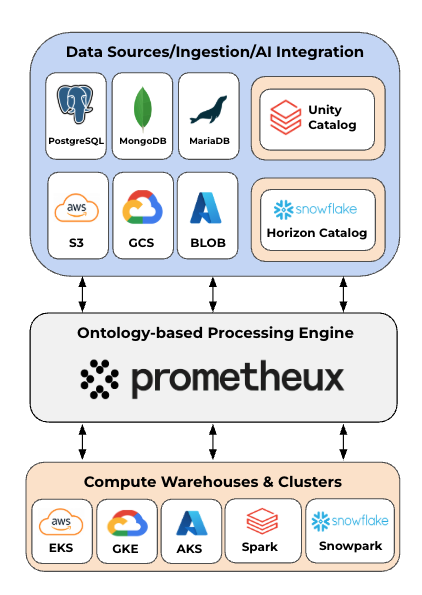
Connect Snowflake Cortex Agents to Prometheux using the Remote MCP Server. Cortex Agents support MCP connectors, allowing them to discover and invoke external tools within Snowflake's governed environment.

By registering Prometheux as an external MCP server, Cortex Agents gain the ability to list concepts, run reasoning, and query knowledge graphs — directly within Snowflake Intelligence.

Prerequisites

  • Snowflake account with ACCOUNTADMIN role
  • Prometheux credentials (username, organization, API token)
  • Cortex Agents with MCP Connectors enabled on your account
  • Cross-region inference enabled (required if no models are available in your region)
Cross-Region Inference

If your Snowflake region doesn't have LLM models available locally, enable cross-region inference first:

ALTER ACCOUNT SET CORTEX_ENABLED_CROSS_REGION = 'ANY_REGION';

Without this, agent creation will fail with a "model not authorized" error.

Setup

Step 1 — Create the API Integration

Run the following SQL in a Snowsight worksheet as ACCOUNTADMIN:

USE ROLE ACCOUNTADMIN;

CREATE API INTEGRATION prometheux_mcp_integration
API_PROVIDER = external_mcp
API_ALLOWED_PREFIXES = ('https://api.prometheux.ai/px-remote-mcp-server')
API_USER_AUTHENTICATION = (
TYPE = OAUTH2
OAUTH_CLIENT_ID = 'prometheux'
OAUTH_CLIENT_SECRET = 'unused'
OAUTH_TOKEN_ENDPOINT = 'https://api.prometheux.ai/px-remote-mcp-server/oauth/token'
OAUTH_AUTHORIZATION_ENDPOINT = 'https://api.prometheux.ai/px-remote-mcp-server/oauth/authorize'
OAUTH_CLIENT_AUTH_METHOD = CLIENT_SECRET_POST
)
ENABLED = TRUE;
FieldValue
API_PROVIDERexternal_mcp
OAUTH_CLIENT_IDprometheux
OAUTH_CLIENT_SECRETAny non-empty value (e.g. unused)
OAUTH_TOKEN_ENDPOINThttps://api.prometheux.ai/px-remote-mcp-server/oauth/token
OAUTH_AUTHORIZATION_ENDPOINThttps://api.prometheux.ai/px-remote-mcp-server/oauth/authorize
OAUTH_CLIENT_AUTH_METHODCLIENT_SECRET_POST

Step 2 — Create the External MCP Server

Create a database and schema to hold the MCP server object (or use an existing one):

CREATE DATABASE IF NOT EXISTS PROMETHEUX;
CREATE SCHEMA IF NOT EXISTS PROMETHEUX.INTEGRATION;

USE DATABASE PROMETHEUX;
USE SCHEMA INTEGRATION;

CREATE EXTERNAL MCP SERVER prometheux_mcp_server
WITH DISPLAY_NAME = 'Prometheux'
URL = 'https://api.prometheux.ai/px-remote-mcp-server/mcp'
API_INTEGRATION = prometheux_mcp_integration;

Step 3 — Create an Agent with the MCP Connector

CREATE AGENT PROMETHEUX.INTEGRATION.prometheux_agent
COMMENT = 'Agent with Prometheux MCP connector'
FROM SPECIFICATION
$$
models:
orchestration: "auto"
mcp_servers:
- server_spec:
name: "PROMETHEUX.INTEGRATION.PROMETHEUX_MCP_SERVER"
$$;
Using an existing agent

To add Prometheux to an existing agent, navigate to AI & ML → Agents in Snowsight, select your agent, and add the Prometheux connector from the MCP Connectors section.

Step 4 — Connect via Snowflake Intelligence

  1. Navigate to AI & ML → Agents in Snowsight
  2. Select your agent and click Preview to open Snowflake Intelligence
  3. Open the Sources panel and find Prometheux under Connectors
  4. Click Connect — Snowflake will redirect you to the Prometheux OAuth login page
  5. Enter your credentials:
    • Username: Your Prometheux username
    • Organization: Your Prometheux organization
    • API Token: Your Prometheux authentication token
  6. Submit the form — Snowflake will receive your session token automatically

The connector should now show as Connected in the sources panel.

Usage

Once connected, interact naturally with the agent in Snowflake Intelligence. Cortex will automatically discover and invoke Prometheux tools based on your queries.

Available Tools

See the MCP overview page for the complete list of tools exposed to Cortex Agents.

Alternative Setup via Snowsight UI

You can also add the connector through the Snowsight UI instead of SQL:

  1. Go to AI & ML → Agents → Settings → Tools and Connectors
  2. Click Add custom
  3. Select Standard OAuth and fill in:
FieldValue
NamePrometheux
DescriptionConnect to Prometheux ontologies
Server URLhttps://api.prometheux.ai/px-remote-mcp-server/mcp
Token endpointhttps://api.prometheux.ai/px-remote-mcp-server/oauth/token
Authorization endpointhttps://api.prometheux.ai/px-remote-mcp-server/oauth/authorize
OAuth Client IDprometheux
OAuth Client Secretunused
Scopesopenid
  1. Select a database and schema, then click Add

Disconnecting

To disconnect the Prometheux connector:

  1. In Snowflake Intelligence, open the Sources panel
  2. Click Manage Connections
  3. Select the Prometheux connector and click Disconnect

Cleanup

To fully remove the Prometheux integration:

DROP AGENT PROMETHEUX.INTEGRATION.PROMETHEUX_AGENT;
DROP EXTERNAL MCP SERVER PROMETHEUX.INTEGRATION.PROMETHEUX_MCP_SERVER;
DROP API INTEGRATION PROMETHEUX_MCP_INTEGRATION;

Troubleshooting

"Invalid redirect_uri" error

Solution:

  • This occurs if the Prometheux remote MCP server doesn't recognize Snowflake's OAuth callback. Ensure you're connecting to the latest version of the remote server at https://api.prometheux.ai/px-remote-mcp-server.

"Model not authorized" error

Solution:

  • Enable cross-region inference on your account:
    ALTER ACCOUNT SET CORTEX_ENABLED_CROSS_REGION = 'ANY_REGION';
  • Alternatively, check which models are available in your region and set a specific model in the agent specification instead of "auto".

Connector shows "Connected" but tools don't work

Solution:

  • If the remote MCP server was restarted, session tokens are invalidated. Disconnect and reconnect via the Sources panel in Snowflake Intelligence.
  • Verify your Prometheux credentials are still valid.

"Failed to add MCP connector" in the UI

Solution:

  • Use the SQL-based setup instead. The Snowsight UI may fail silently if the server is temporarily unreachable.
  • Ensure the MCP server URL is accessible from Snowflake's network.

Agent can't find the MCP server object

Solution:

  • Verify the fully qualified name matches exactly (e.g. PROMETHEUX.INTEGRATION.PROMETHEUX_MCP_SERVER).
  • Ensure the ACCOUNTADMIN role has USAGE on the database and schema.

For general troubleshooting, see the Remote MCP Server troubleshooting section.