

What is Prometheux?
Prometheux is an ontology-native data processing engine. It allows you to define ontologies that are executable—meaning they can be used directly to query and process data across multiple systems. An ontology in Prometheux is not just documentation. It is a runnable model that defines:- Entities and relationships
- Semantics and constraints
- Query and processing logic
How Prometheux Works
Prometheux introduces an ontology layer that sits above your existing data systems. Instead of moving or transforming data into a single location, Prometheux:- Connects to data where it already lives
- Applies ontology-defined logic at query or execution time
- Produces results with full lineage and traceability
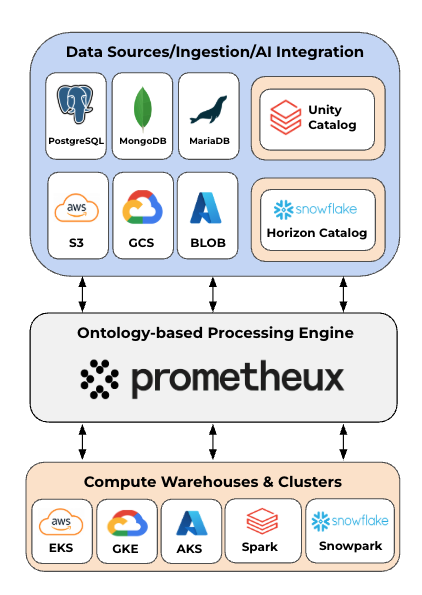 Figure: Prometheux architecture.
Key Concepts
Executable Ontologies
Ontologies in Prometheux are directly executable. They can be queried, composed, and used to drive data processing workflows.Ontology-Native Queries
Queries are expressed in terms of ontology concepts rather than physical schemas, reducing coupling to underlying data structures.Distributed Data Access
Prometheux can operate across multiple data sources simultaneously, resolving semantics at runtime.Lineage and Traceability
All results retain explicit links back to the ontology definitions and underlying data sources.Supported Environments
Prometheux is designed to run in modern data stacks and can be deployed alongside existing platforms.- Native integrations with Databricks and Snowflake
- Deployable in cloud or on-prem environments
- Works with structured data across multiple storage and compute systems
Who This Documentation Is For
This documentation is intended for:- Data engineers integrating Prometheux into existing platforms
- Analytics and BI teams querying ontology-defined data
- AI and application developers requiring consistent semantics
- Architects designing ontology-driven data systems
What’s Next
Start by installing Prometheux in the environment that fits your team:- Installation — Choose between Cloud, Docker, Snowflake, Databricks, or on-premise
- Vadalog Reference — The language underpinning the Prometheux reasoning engine
- Python SDK — Connect to Prometheux programmatically