

Every control, tab, and keyboard shortcut in the Prometheux concept editor — define a concept’s logic, run it, read its output, and tune how it executes.
The concept editor opens when you click a concept in the
Explorer or lineage canvas, or when you create a
new cell. It’s where you write a concept’s logic, run it, and inspect the result.The editor has three parts: a toolbar at the top, a row of tabs
(logic, description, engine, output), and the code area below.
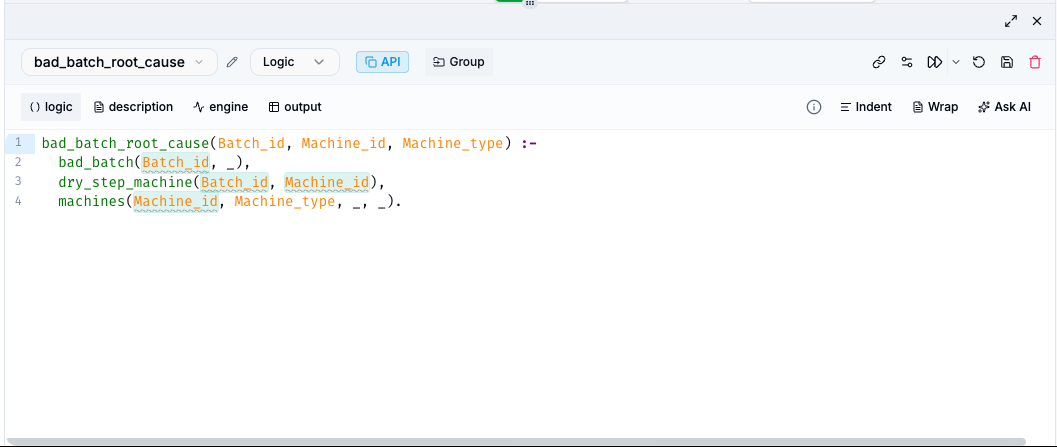
The left side of the toolbar defines what the concept is:
Control
What it does
Concept name (dropdown)
Selects which predicate this concept outputs. It auto-tracks the last predicate parsed from your code until you pick one explicitly, which then locks it in.
Rename (pencil)
Renames the concept. Available once the concept has been saved.
Type (dropdown)
Sets the language: Logic (Vadalog), SQL, Cypher, or Python.
API
Copies a ready-to-run cURL command for this concept’s REST run endpoint, using a fresh, short-lived API key (your session token is never embedded). Paste it into a terminal to run the concept from outside the app. See the Concepts API.
Group
Adds the concept to a group (folder), or removes it from its current group.
The right side of the toolbar holds the actions:
Control
Tooltip
What it does
Link
Data bindings
Opens the bind editor to map input/output predicates to data sources.
Gear
Settings
Opens cell settings, including evaluation policies.
Run ▸
Run cell / Run workflow
Runs the concept. The dropdown chooses Run cell (this concept only) or Run workflow (this concept plus everything it depends on). Shortcut: Shift+Enter.
Stop
Stop execution
Replaces Run while the concept is executing; cancels the run.
X
Clear results
Clears the displayed output.
Undo
Restore results
Brings back the last cleared output.
Save
Save cell
Saves the concept (⌘S / Ctrl+S). Turns blue with a Modified label when there are unsaved changes.
Trash
Delete cell
Permanently deletes the concept (asks for confirmation).
The code editor — your Vadalog (or SQL / Cypher / Python), with syntax highlighting and line numbers.
description
A plain-English description of the concept. You can tag other concepts with @name. Two helpers sit below the text: Generate description from code (writes a description for you) and ✨ Generate Vadalog from natural language (drafts the code from your description).
engine
A live engine monitor showing compute/execution status while the concept runs.
output
The result table(s): paginated rows with search and per-column filters, plus row counts and run timings.
The editor’s own shortcuts (shown as Mac / Windows·Linux):
Action
Shortcut
Run
Shift+Enter
Save
⌘S / Ctrl+S
Auto-indent
⌘I / Ctrl+I
Toggle comment
⌘7 / Ctrl+7
Toggle word wrap
⌘⌥Z / Alt+Z
Standard code-editor shortcuts also work:
Action
Shortcut
Select next occurrence
⌘D / Ctrl+D
Select all occurrences
⌘⇧L / Ctrl+Shift+L
Add cursor above / below
⌘⌥↑ / ⌘⌥↓ (Mac), Ctrl+Alt+↑ / ↓ (Win/Linux)
Move line up / down
Alt+↑ / Alt+↓
Copy line up / down
Shift+Alt+↑ / Shift+Alt+↓
Find / Replace
⌘F / Ctrl+F
Find next / previous
⌘G / ⌘⇧G (Mac), Ctrl+G / Ctrl+Shift+G (Win/Linux)
Go to line
⌘⌥G / Ctrl+Alt+G
Don’t write Vadalog by hand if you’d rather not: write what you want in the
description tab and use ✨ Generate Vadalog from natural language, or open
Ask AI to have the assistant write and run the concept for you.
