

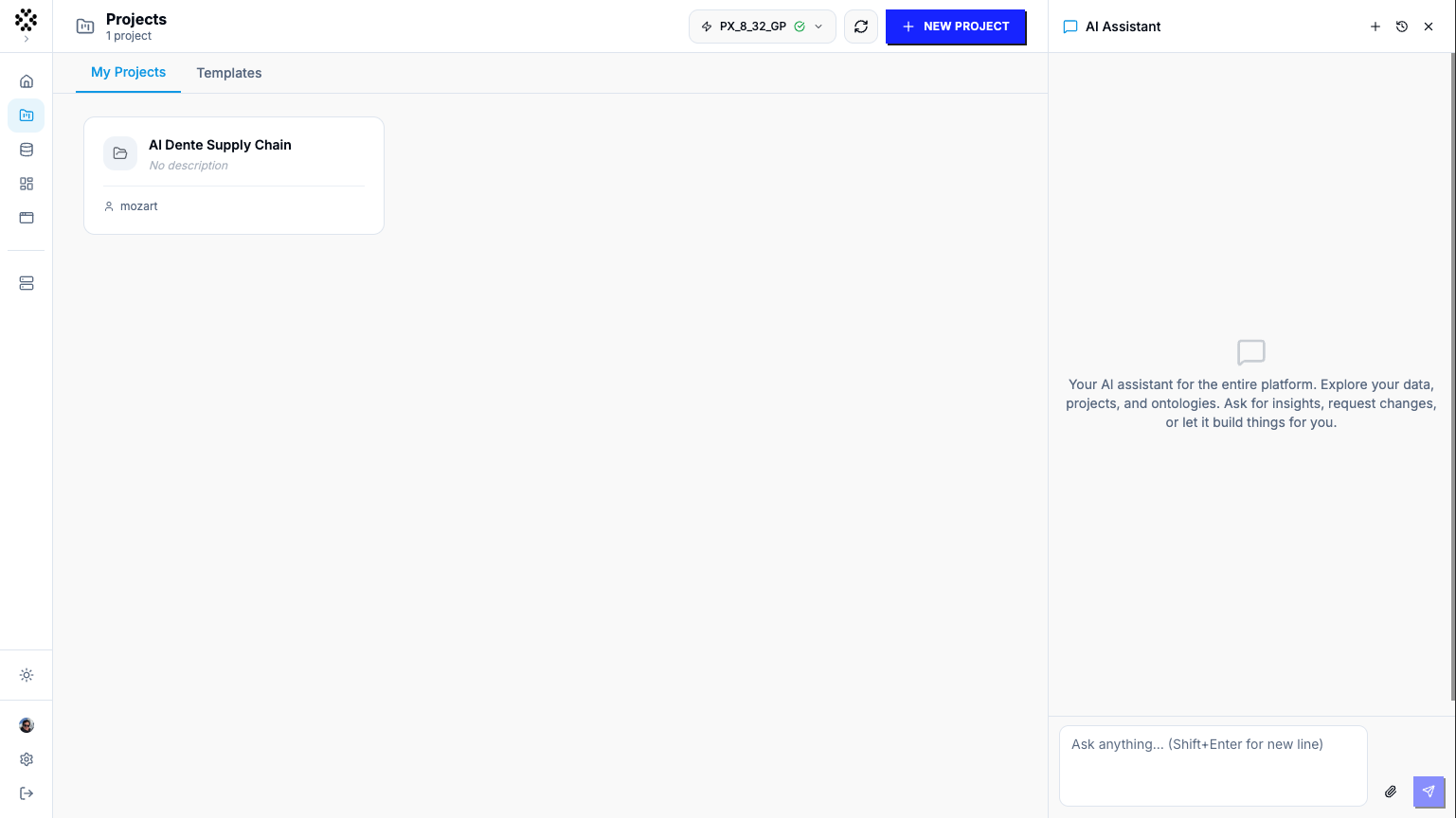
The AI Assistant panel docked on the right — message transcript, the model badge in the header, and the attach / new-chat / history controls.
Where to find it
The panel header has a New chat button, a Chat history button, and a small
badge showing which AI model is currently answering.
What you can ask it to do
Everything below is something the assistant can carry out for you. Each section includes example prompts — phrase your own requests the same conversational way.Explore your workspace
Ask about anything you already have and the assistant will look it up: your ontologies, connected data sources (with their columns and row counts), concepts and their code, schemas, and apps. It can also preview the first rows of any data source.
“What data sources do I have connected?”
“Preview the transactions table.”
“List the concepts in this ontology and show me what final_report does.”
Create and manage ontologies
The assistant can spin up a new ontology for you, and take a snapshot (point-in-time version) before you make big changes so you can roll back.“Create an ontology called Company Ownership for analysing shareholder data.” “Snapshot this ontology before we restructure the schema.”
Bring in data — connect, upload, or generate
You can give the assistant data in several ways:- Connect an uploaded file. Attach a CSV, Excel, Parquet, JSON, TSV, RDF/OWL, or similar file and the assistant wires it up as a queryable data source.
- Generate mock data. Describe the data you want and the assistant creates a small CSV data source from it — useful for prototyping before real data is connected. It always previews the data in chat and waits for your OK before creating it.
- Generate sample facts. Produce realistic example input or output facts for your predicates, to test a concept or demonstrate its output.
“Here’s a CSV of transactions — connect it as a data source.” (attach the file first)
“Make me 50 rows of mock customer data with name, country, and signup date.”
“Generate sample facts for the ownership predicate so I can test the rule.”
Write, run, and fix logic
This is the assistant’s core skill. It generates Vadalog for you (you never have to write the syntax yourself), saves it as a concept, runs it, and reads back the results. If a run fails, it automatically repairs the code and re-runs — looping until it works or it has learned enough to explain the problem.
“Create a concept that finds every company indirectly controlled by Acme.”
“Run controlled_companies and show me the first rows.”
“This concept is throwing an error — fix it.”
Model your domain (schema)
The assistant can read your ontology’s schema and build or update it — adding entity types (nodes) and relationship types (edges). Because schema changes are harder to undo, it shows you the change and asks for confirmation first.“Add a Company node and a CONTROLS edge between companies.” “What does my current schema look like?”
Build apps
Ask for an app and the assistant assembles it, mapping your concepts to widgets — tables, line charts, pie charts, bar lists, stat cards, progress bars, badge tables, and more.“Build an app that shows the top shareholders as a bar chart and the ownership table below it.” “Delete the old ‘scratch’ app.”
Work with documents and remembered context
The assistant has a Context Layer — a memory of facts, preferences, and documents that persists across conversations and grounds future answers.- Ingest documents. Upload a PDF, policy, glossary, or regulatory text and the assistant chunks and embeds it into the Context Layer so it can retrieve the relevant passages later.
- Extract concepts from a document. Have it scan an ingested document and propose candidate concepts (rules) drawn from its contents.
- Remember facts and preferences. Tell it a business definition or a working preference and it saves a durable note; it recalls the relevant ones on every future turn. It can also promote a saved note into a concept.
“Import this AML policy PDF and use it as context.” (attach the PDF first) “Pull any rules out of that policy document and turn them into concepts.” “Remember that an ‘active’ customer is one with a purchase in the last 90 days.”
Ask about Prometheux and Vadalog
The assistant can answer questions about the Prometheux product itself and search the Vadalog documentation for patterns and examples.“What is Prometheux and who is it for?” “Show me how recursion works in Vadalog.”
Translating other formats. The assistant generates Vadalog from natural
language directly. To convert SQL, RDF, or OWL into Vadalog, use the
translation features (the ✨ button in the concept editor, or the
Vadalingo API).
How it works
It plans and acts, and streams as it goes. As the assistant works you’ll see its reply text appear live, the tools it’s running (“Working…”), the changes it proposes, and the results of each step — the same tight loop whether it’s writing one concept or building a whole workflow. It confirms before risky changes — but not for things you asked for. If you explicitly tell it to create or change something, it just does it. If it’s proactively suggesting something you didn’t ask for, or the action is hard to undo (changing the schema, deleting an app, creating mock data), it shows you what it intends to do and waits for your go-ahead. It asks instead of guessing. When a request can’t be pinned down — e.g. you ask for “active” or “suspicious” records but those aren’t defined anywhere — the assistant asks a clarifying question with clickable options rather than assuming what you meant. It remembers. Each conversation keeps full context, so follow-ups just work. Durable facts and preferences are saved to the Context Layer and recalled in later sessions. You can switch ontologies mid-conversation and it reloads context for the new ontology. It stays on topic. The assistant is scoped to your data, Vadalog, and the Prometheux platform; it politely declines unrelated requests. If your account isn’t allowed to perform an action (for example, editing ontologies), it tells you that action is outside what it can do for you.Attaching files
Click the paperclip in the message box to attach one or more files (up to 50 MB each). A chip shows each file’s upload progress. Once attached, tell the assistant what to do with it — “connect this as a data source” or “ingest this as context.”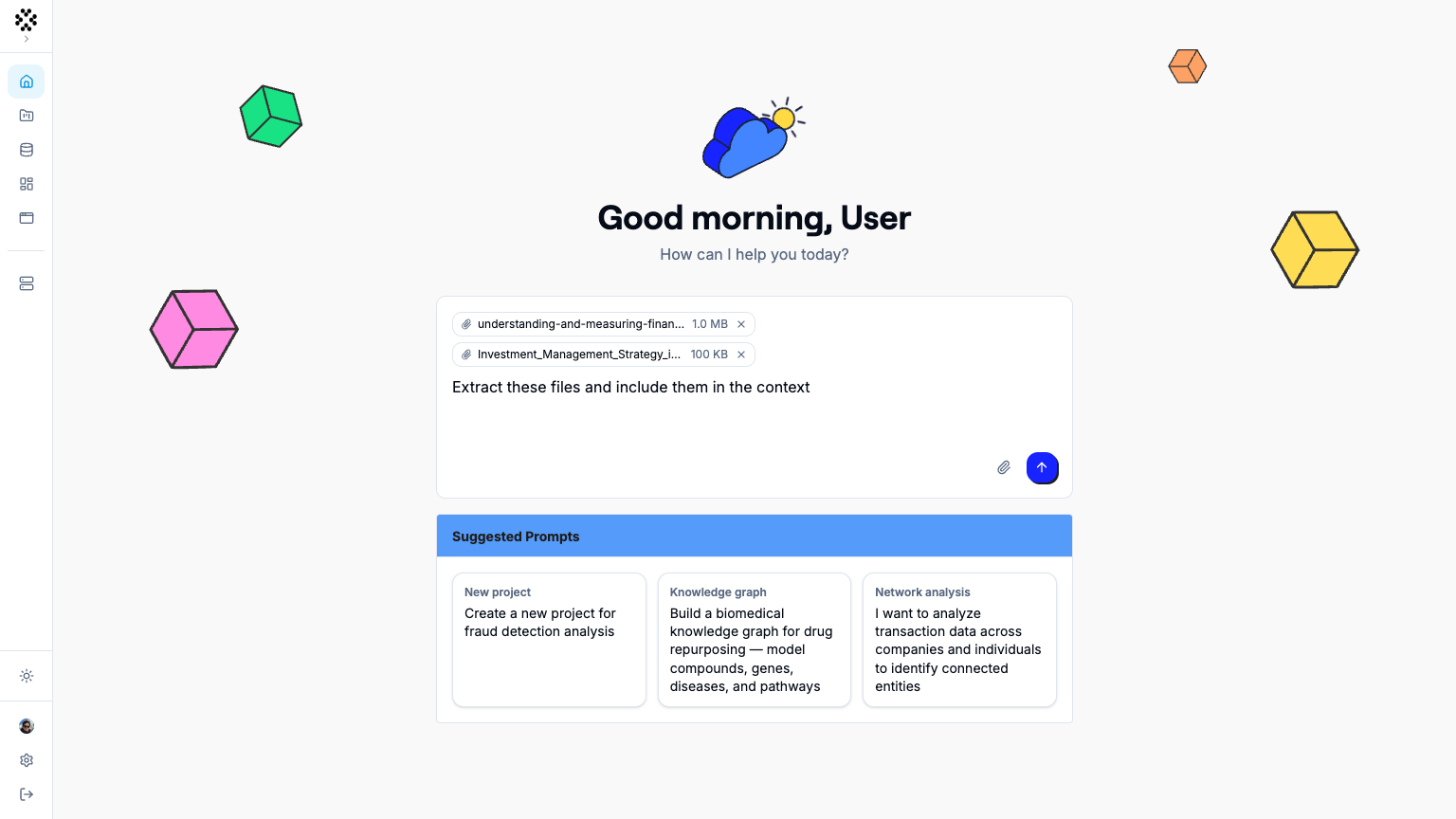
A message with an attached PDF, and the assistant's response showing a proposal card and a clarifying question with selectable options.
Managing conversations
- New chat — start a fresh session (clears the current transcript).
- Chat history — reopen past conversations; rename or delete them.
- Conversations are titled automatically from their content.
Learn more
Quickstart
See where the assistant fits in the end-to-end app workflow.
Concepts & Lineage
Understand the concepts the assistant creates and runs.
Agent API
Drive the assistant programmatically over the streaming chat API.
Thinking in Vadalog
Frame problems the way the language — and the assistant — expects.