

- The Explorer on the left — the navigation tree of every concept in the project.
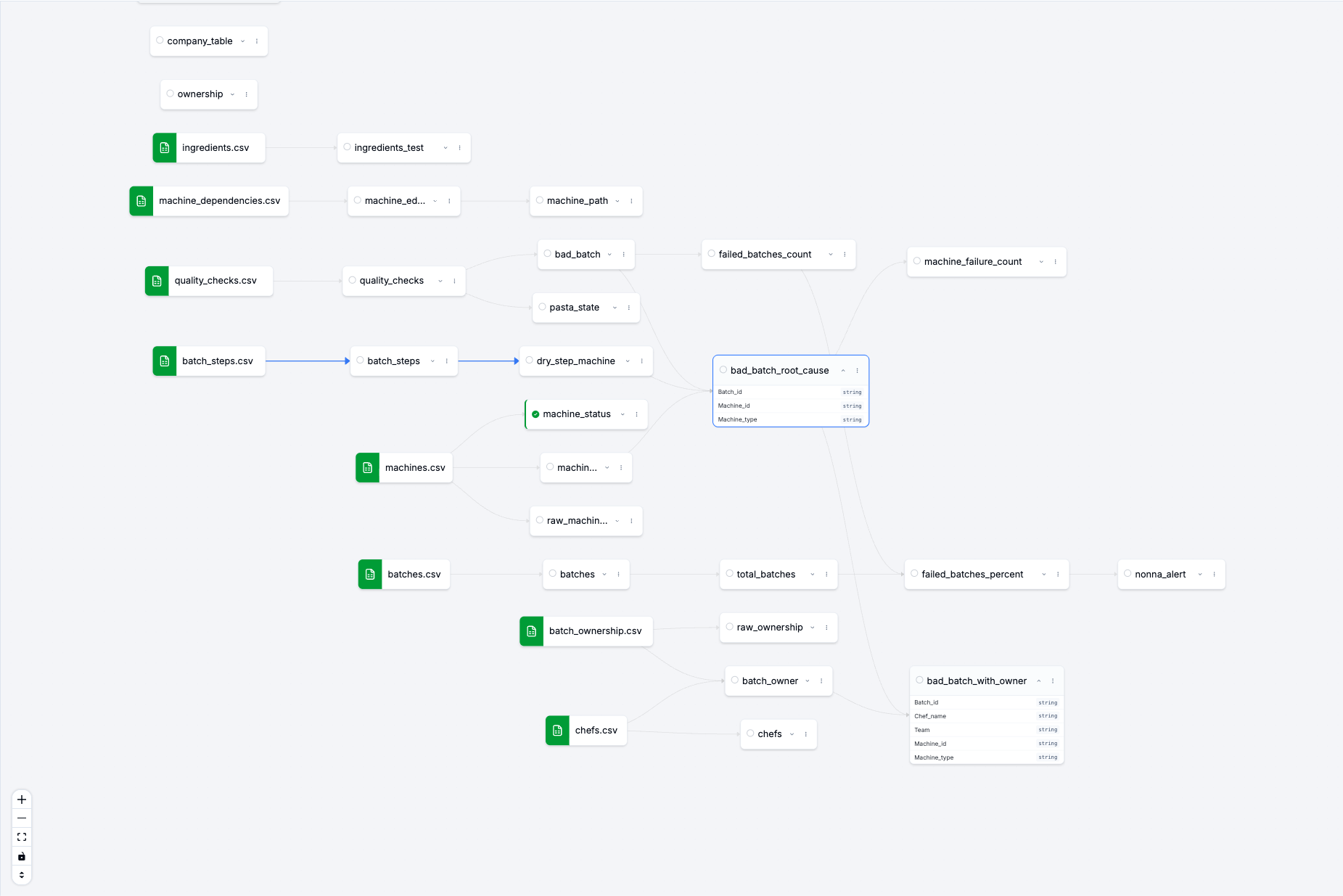
- The lineage canvas in the center — a visual graph of how your concepts and data sources depend on one another.
- The Concepts and Data tabs on the right — for browsing the concepts and data sources you can build with.
The Explorer
The Explorer is your project’s table of contents. Toggle it with the Explorer tab on the far-left edge. Each row is one concept; the icon shows its type:| Icon | Concept type |
|---|---|
( ) | Vadalog (logic) |
| Database | SQL |
| Share | Cypher |
| Code | Python |
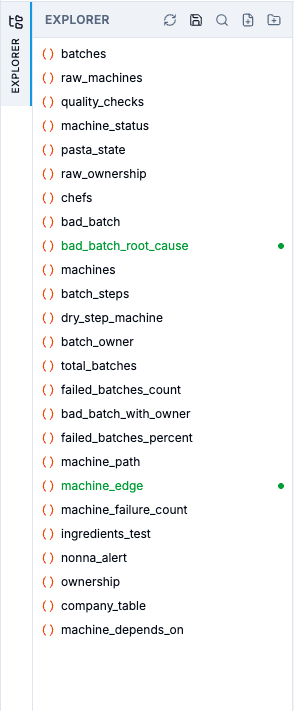
Explorer header actions
| Button | Tooltip | What it does |
|---|---|---|
| Refresh | Refresh concepts | Reloads the project’s concepts and lineage. |
| Save | Save all | Saves every concept with unsaved changes. Highlights when changes are pending. |
| Search | Search cells | Opens a filter box that matches on code, description, and output predicate. |
| Collapse / Expand | Collapse all groups / Expand all groups | Folds or unfolds every group at once. |
| New cell | New cell | Creates a new, empty concept. |
| New group | New group | Creates a folder for organizing concepts. |
Working with concepts in the tree
| Action | How |
|---|---|
| Open a concept | Single-click it — it opens in the editor. |
| Rename | Double-click it, or right-click → Rename. |
| Create nearby | Right-click → New cell here. |
| Delete | Right-click → Delete (asks for confirmation). |
| Organize into groups | Create a New group, then drag concepts in, or use a group’s right-click menu (New cell in …, Rename group, Delete group). A count badge shows how many concepts each group holds. |
Concepts
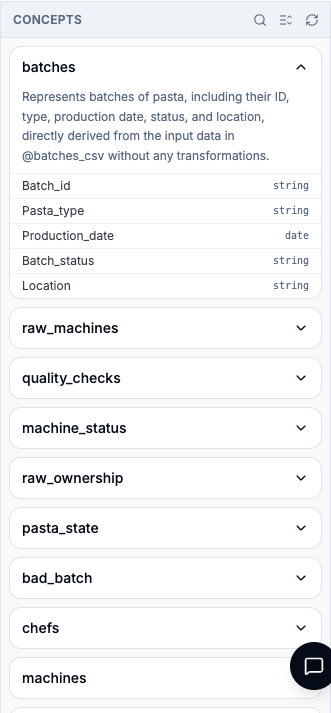
The Concepts tab on the right edge lists every concept in the project (including those defined as ontology nodes) as a browsable reference. Click the tab to open or close it; it has its own Search, Collapse all / Expand all, and Refresh controls. Each entry is expandable and shows the concept’s fields and types.- Click an entry to jump to its concept in the editor.
- Copy concept copies the concept’s signature —
name(field1, field2, …)— to your clipboard, ready to paste into a rule.
Data
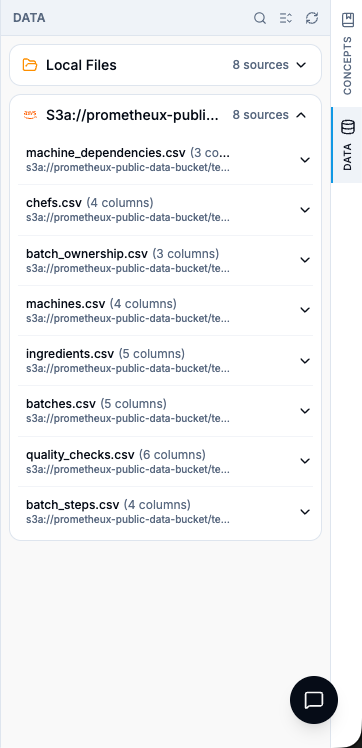
The Data tab on the right edge lists the data sources connected to your workspace, grouped by location (for example Local Files and an S3 bucket). Each source shows its column count and expands to reveal its schema, row count, and path.| Action | How |
|---|---|
| Inspect a source | Expand it to see columns, types, row count, and location. |
| Build on a source | Create concept from this data source (the + button) opens a new concept already bound to that source. |
| Reuse a source | Copy predicate signature copies the source’s name(col1, col2, …) for use in a rule. |
| Add a source | Connect new sources from the Data Sources page; they appear here automatically. |
The lineage canvas
The center canvas draws your project as a dependency graph: each concept is a card, each data source is a node, and the edges show what feeds what — this is your data lineage at a glance.- Each concept card shows a status dot (running, success, error, or skipped), the concept name, and — if it has fields — an expand/collapse chevron.
- Click a card to open that concept in the editor and highlight its upstream dependencies.
- A card’s three-dot menu offers Rename and Delete.
- Click a data source node to open a side panel with two tabs: Details (connection info and schema) and Preview (a paginated, searchable sample of the data).
- Use Collapse all cards / Expand all cards to fold every card to its title, and the standard zoom / fit controls to navigate large graphs.
Where to go next
The Concept Editor
Every control, tab, and keyboard shortcut in the editor.
Concepts & Lineage
The concepts behind the canvas, and how lineage is captured.
Data Sources
Connect the data that powers your concepts.
AI Assistant
Have the assistant build and run concepts for you.