

@params: a form field binds to a parameter, and the run group passes the value when it executes.
This tutorial builds an order search: a form with a region picker and a minimum total, and a table of matching orders.
1. Prepare the concepts
First, a small concept whose output will populate the region picker:Concept: sales_regions
@model matters here: it names the column (region), and the app will refer to that column by name.
Second, the search itself. It declares two @params and filters with them:
Concept: matching_orders
@param declarations are just defaults for running the concept by hand — the app overrides them on every run.
2. Add a form
Create a new app in the same ontology, then in the Data panel add an input of type form with idsearchForm. Give it two fields:
Field ids matter: they are how run groups refer to the values, as
{{searchForm.region}} and {{searchForm.min_total}}.
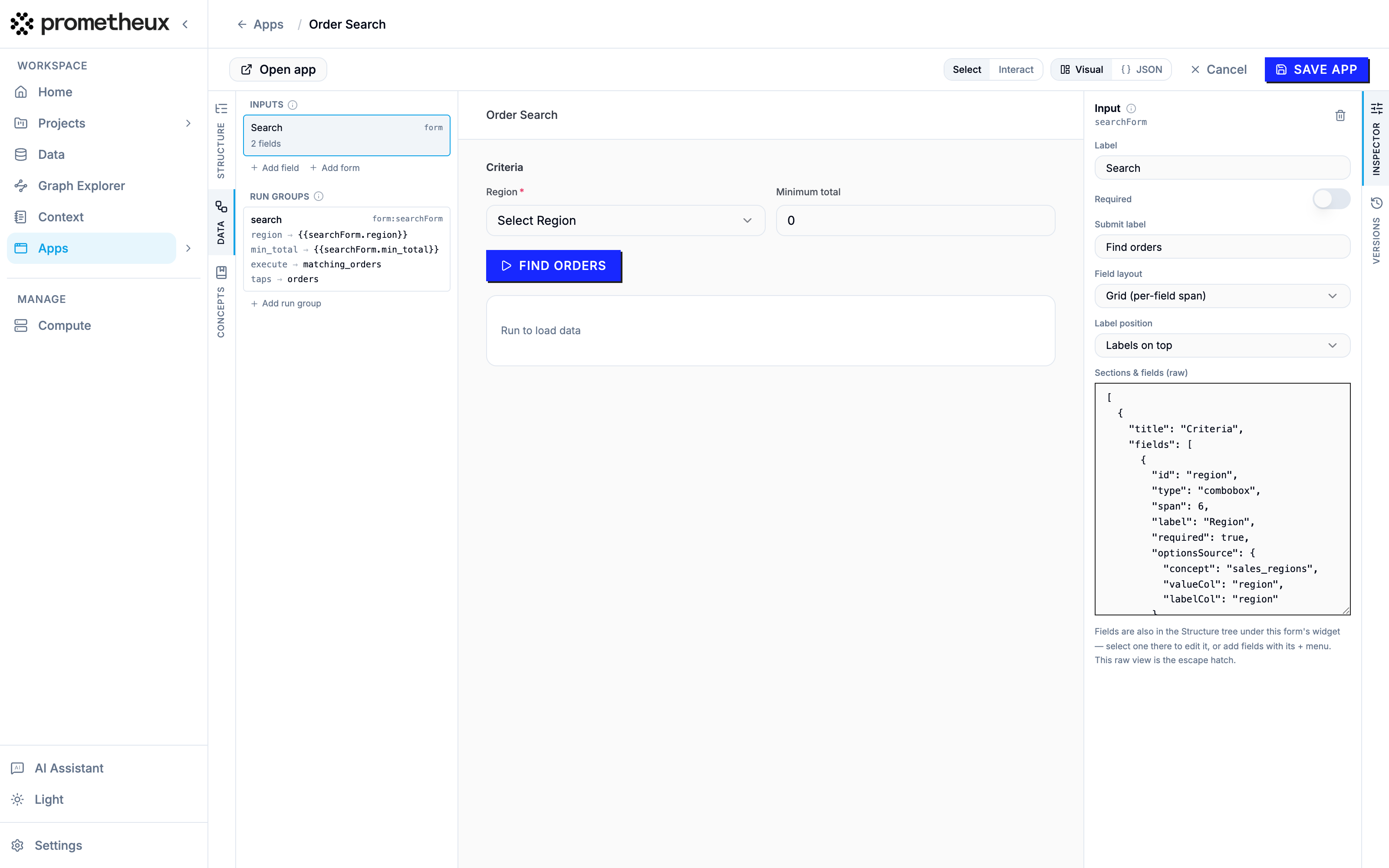
Forms have layout controls of their own — layout: "grid" places fields on a 12-column grid where each field’s span sets its width, and labelPosition puts labels above (top) or beside (left) the fields. Two fields with "span": 6 sit side by side.
With the form in place, the preview renders it live, and selecting it shows its configuration in the inspector:
3. Bind the form to a run group
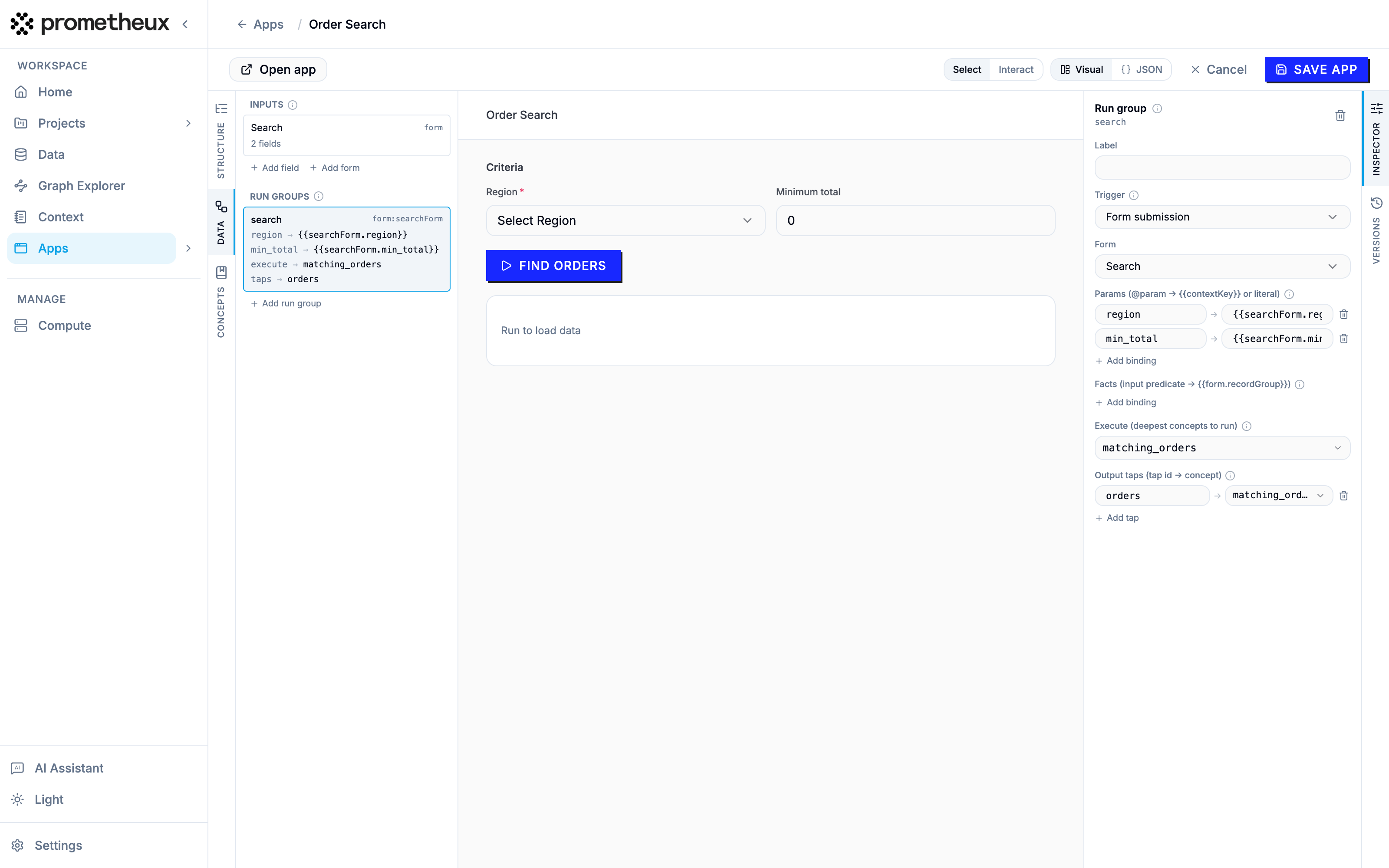
Add a run group with:- trigger:
form, with formIdsearchForm— submitting the form is the trigger; no separate button needed. - params: map each concept parameter to a form value:
region→{{searchForm.region}}min_total→{{searchForm.min_total}}
- execute:
matching_orders - outputs: a tap
ordersonmatching_orders
params must be @param names declared by concepts in the ontology; the {{…}} references on the right must point at inputs or form fields that exist. Both are checked at save time — a typo gives you an error like “param ‘regon’ is not declared as @param by any concept in this ontology; did you mean ‘region’?”.
In the Data panel the group reads as a wiring table — form trigger, both param bindings, execute and tap — and the inspector edits each piece:
4. Place the widgets
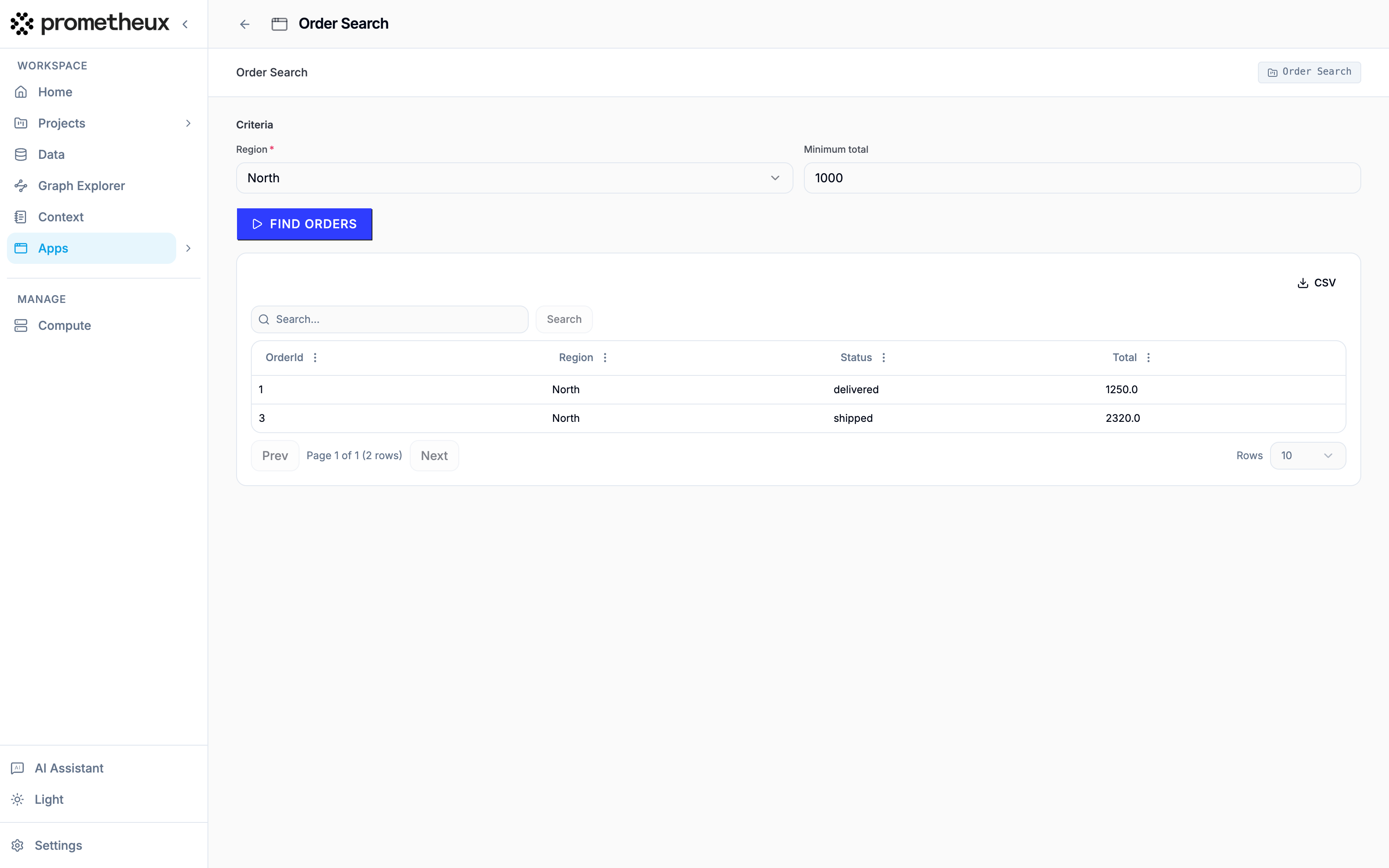
In the section, add:- A form widget (
form_ref) bound tosearchForm. - A rich table bound to the tap
orders.
5. The whole app as JSON
Beyond scalar fields
Two things you’ll reach for as forms grow:- Standalone inputs. A field doesn’t have to live in a form. A page-level input (type
select,text, …) placed with aninput_refwidget publishes its value continuously — useful withauto-triggered run groups, as shown in the next tutorial. - Record groups (facts). A form field of type
record_grouplets the user enter rows, not a single value. The rows are serialized as ground facts and fed to an input predicate — an empty concept that only declares its columns via@model— through the run group’sfactsbinding:"facts": { "price_adjustment": "{{scenarioForm.adjustments}}" }. Use this for what-if inputs. See the reference for the full field list.
text, number, select, combobox, date, multi_select, checkbox, password, textarea — plus record_group inside forms. Fields support required, min/max, pattern, default, placeholder, and conditional visibility via visibleWhen.
Next: Selects, triggers and drill-downs.