

Layout
The editor is a live preview of your app flanked by two rails — Structure / Data / Concepts panels on the left, the Inspector or Versions panel on the right: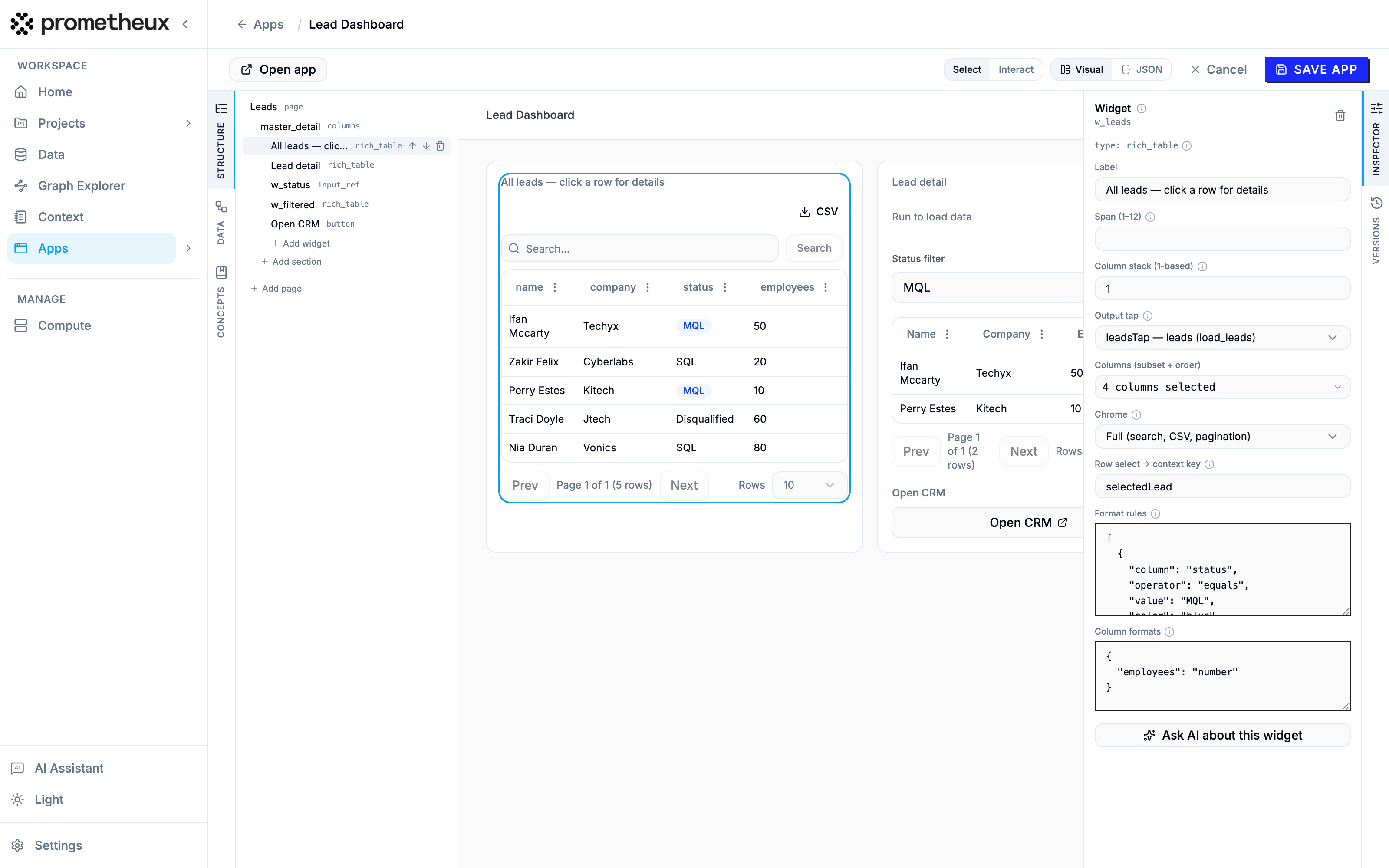 The preview is the canvas. There is no separate design surface: what you see in the center is the running app. Click any widget to select it and edit it in the inspector — above, the master table is selected and the inspector shows its tap binding, column subset, format rules and row-select key.
Left rail
- Structure — the outline tree: pages → sections → widgets (form fields appear as children of their form). Use it to add, select, reorder and remove elements.
- Data — the wiring view: the page’s inputs, forms, run groups, output taps, and the
params/factsbindings between them. This is where the execution side of the app lives. - Concepts — the concept library of the page’s ontology: browse concepts, their parameters and output columns while you wire things up.
Center: preview, Select vs. Interact
The toolbar has a mode toggle:- Select — clicking a widget selects it for editing.
- Interact — the preview behaves like the real app: type in inputs, submit forms, click buttons, run groups for real.
Right rail
- Inspector — edits the selected element’s fields directly: labels, spans, variants, format rules; for run groups, the trigger, the
executelist, and theparams/factsbindings as key–value editors. - Versions — the app’s checkpoint history (below).
JSON view
The toolbar’s Visual / JSON toggle swaps the canvas for the raw definition. It’s a full editor, not a read-only view: valid JSON you type is applied to the working draft (the visual panes stay in sync), and if the JSON is momentarily invalid you see “Invalid JSON — changes not applied” until it parses again. Use it to paste in a definition, make bulk edits, or copy a pattern from these docs.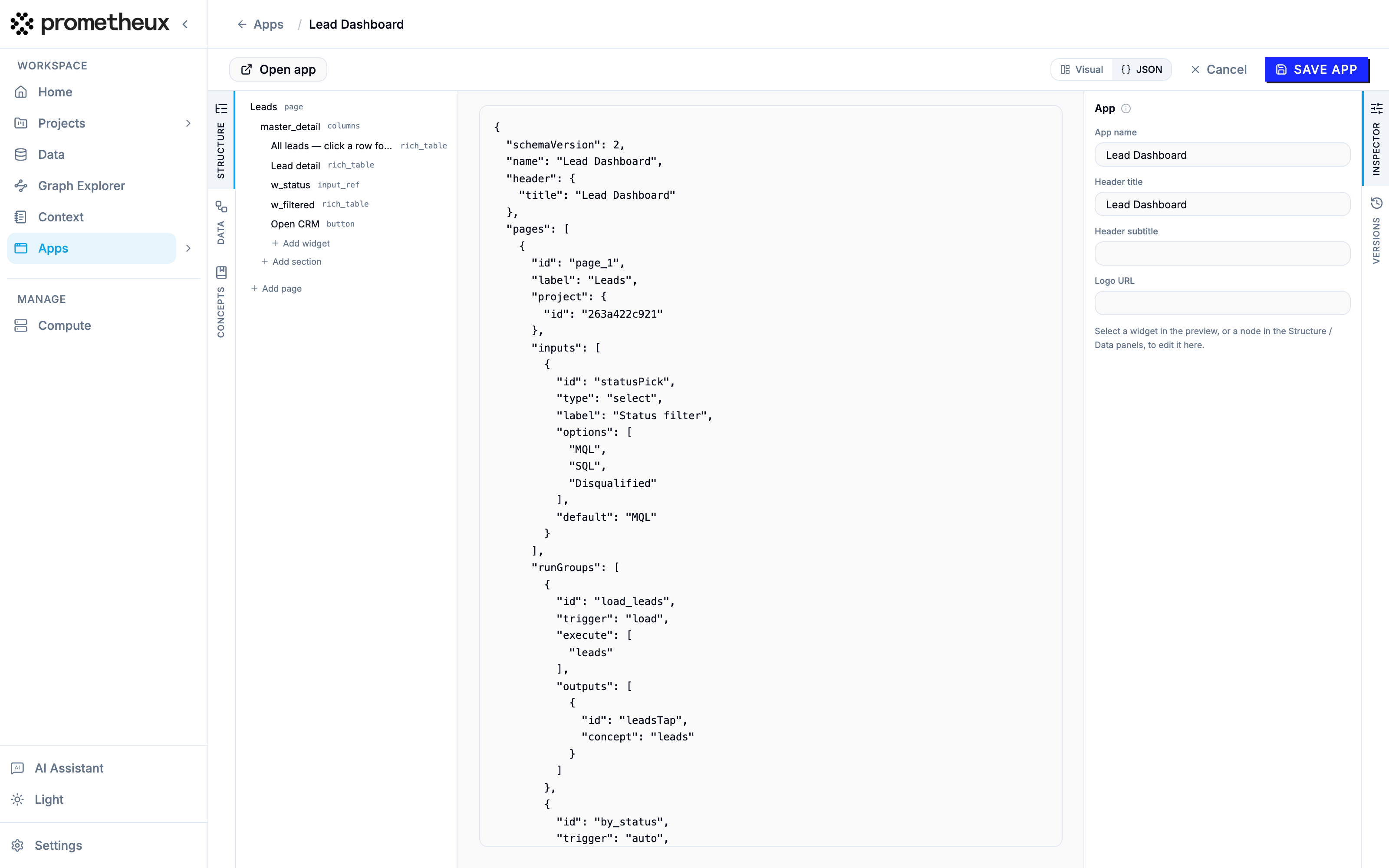
Saving and validation
Save app validates the entire definition against the referenced ontologies’ concepts before anything is stored:- every concept in
execute,outputs,optionsSourceandseedFrommust exist in the page’s ontology, - every
paramskey must be a declared@param, and every{{…}}reference must point at a real input, form field or row-select key, - every column named in
columns,formatRules,columnFormatsandoptionsSourcemust be a column of the relevant concept (matched case-insensitively), factsmay only feed input predicates (empty concepts declaring their columns via@model).
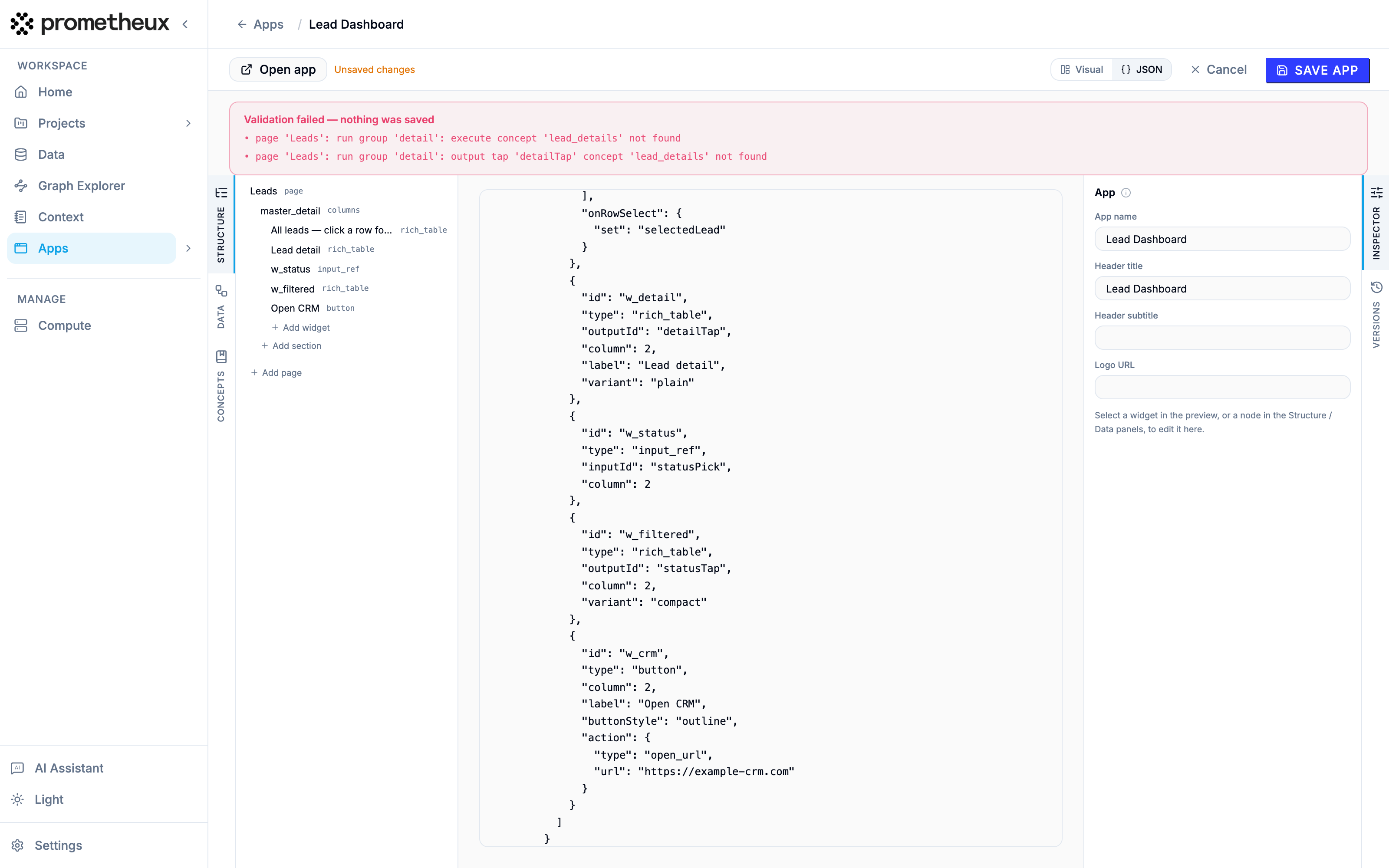 Cancel leaves the editor without saving. The toolbar shows an unsaved-changes indicator whenever your draft differs from the last save.
Versions
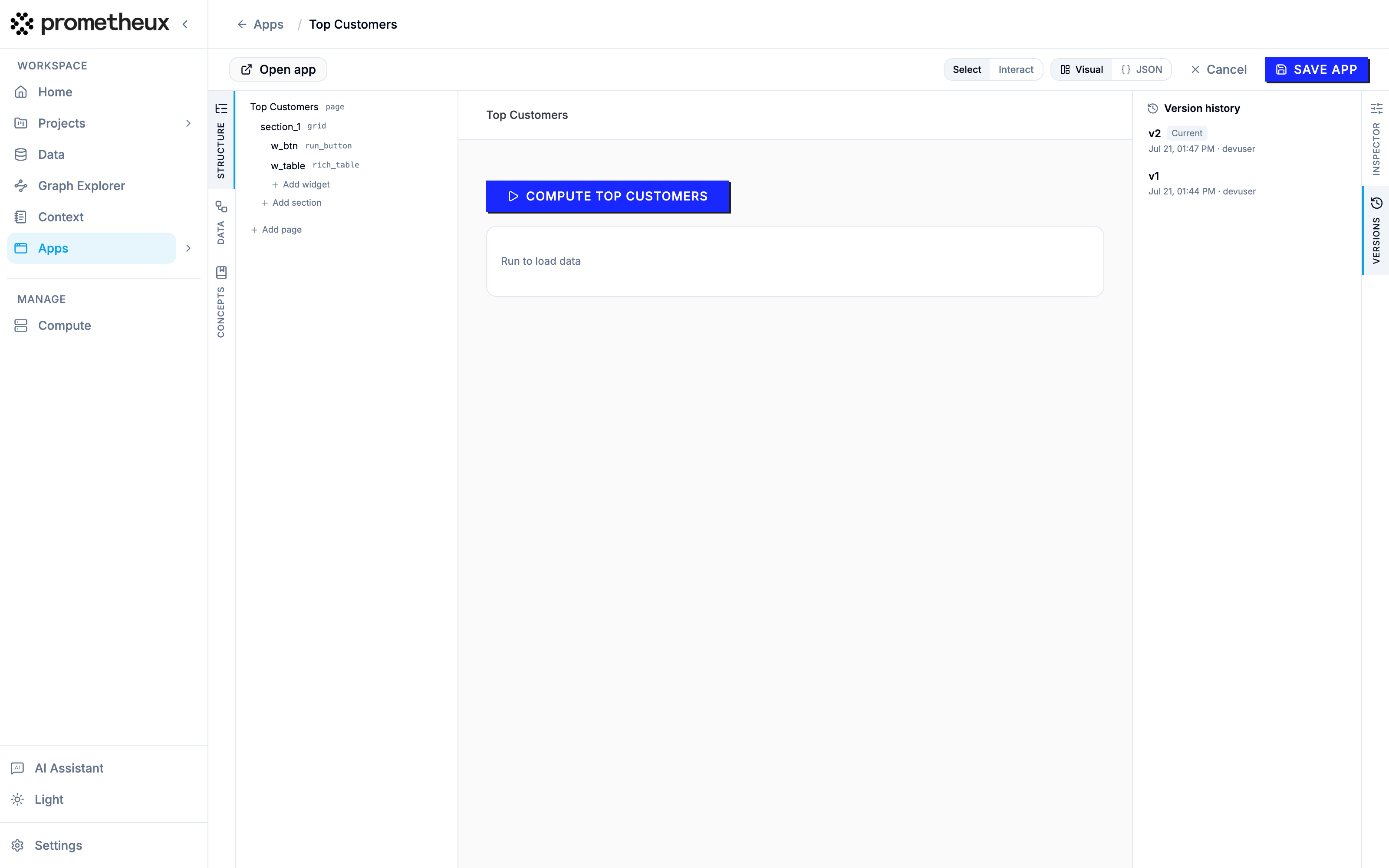
Every successful save appends a version checkpoint. Open the Versions panel to:- browse checkpoints newest-first,
- bookmark the ones you care about (bookmarked versions are kept forever; unbookmarked history is pruned oldest-first after 50 versions),
- restore any version — after a confirmation, the checkpoint’s definition replaces your current draft. Restoring is non-destructive: it creates a new state, nothing is deleted.
Export and import
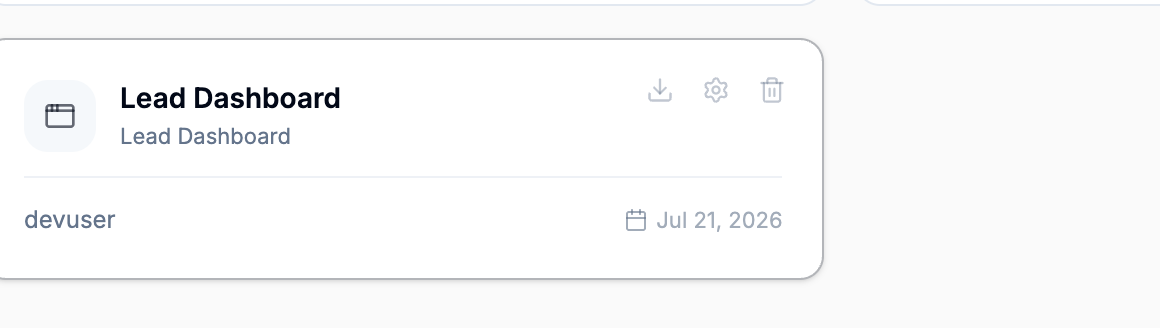
Apps round-trip as JSON files:- Export — the download action on an app’s catalog card saves
<AppName>.json, self-contained including its ontology reference. - Import — the import action in the catalog header takes such a file, assigns the app a fresh identity, and saves it (running the same validation as any save — so importing into an ontology that lacks the referenced concepts fails with the usual errors).
 Use export/import to move an app between environments or keep a copy alongside your ontology assets.
Creating and deleting
- New App asks for the home ontology and a name, then opens the editor with an empty one-page scaffold. Nothing is persisted until your first save.
- Delete (on the catalog card) removes the app and its version history after a confirmation. This cannot be undone — export a copy first if in doubt.