

1. Prepare two concepts
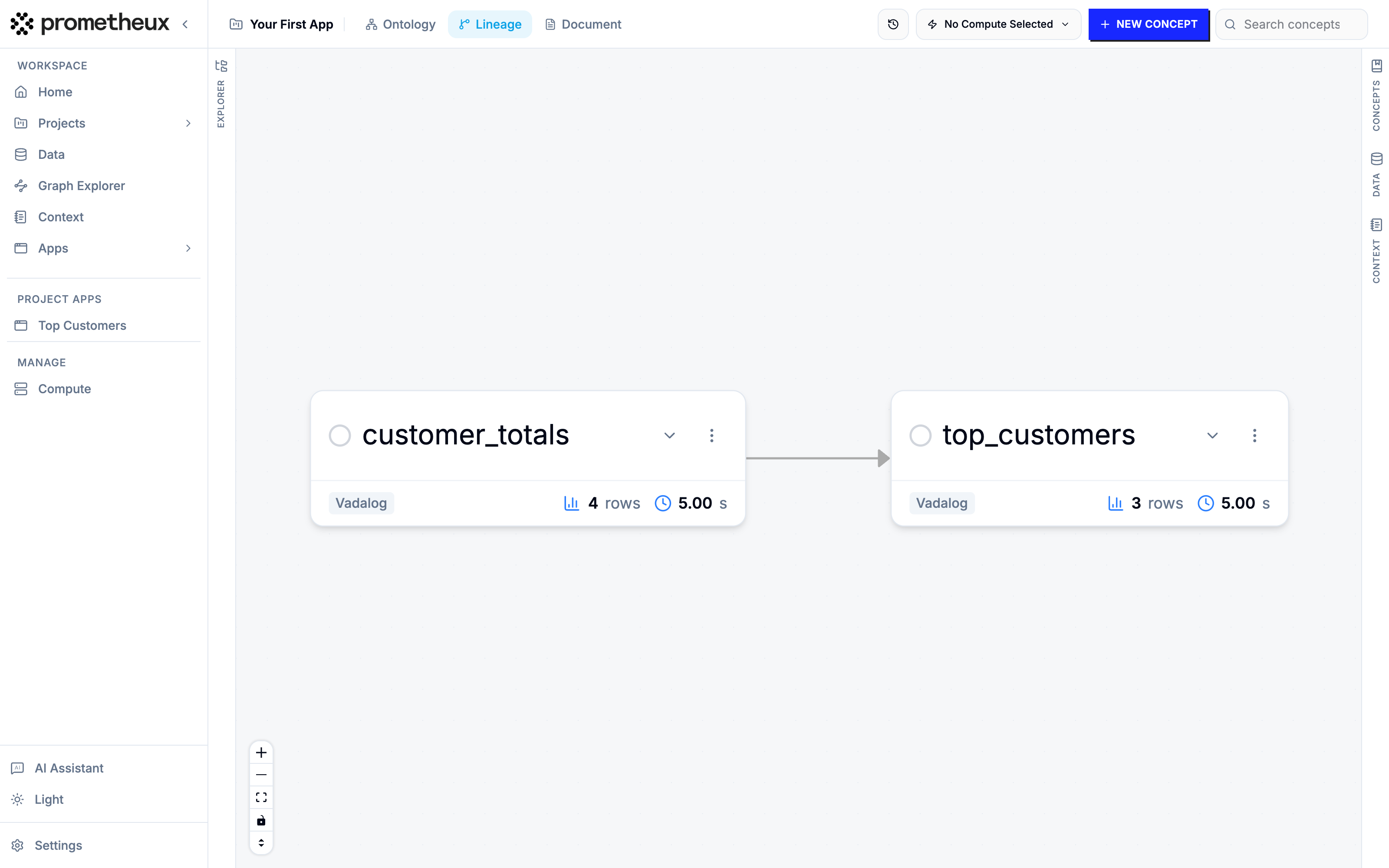
In an ontology of your choice, create two concepts. The first computes a total per customer from a few inline facts:Concept: customer_totals
Concept: top_customers
2. Create the app
- Open Apps in the product navigation and click New App.
- Pick the ontology that holds your two concepts, give the app a name (say, Top Customers), and continue.
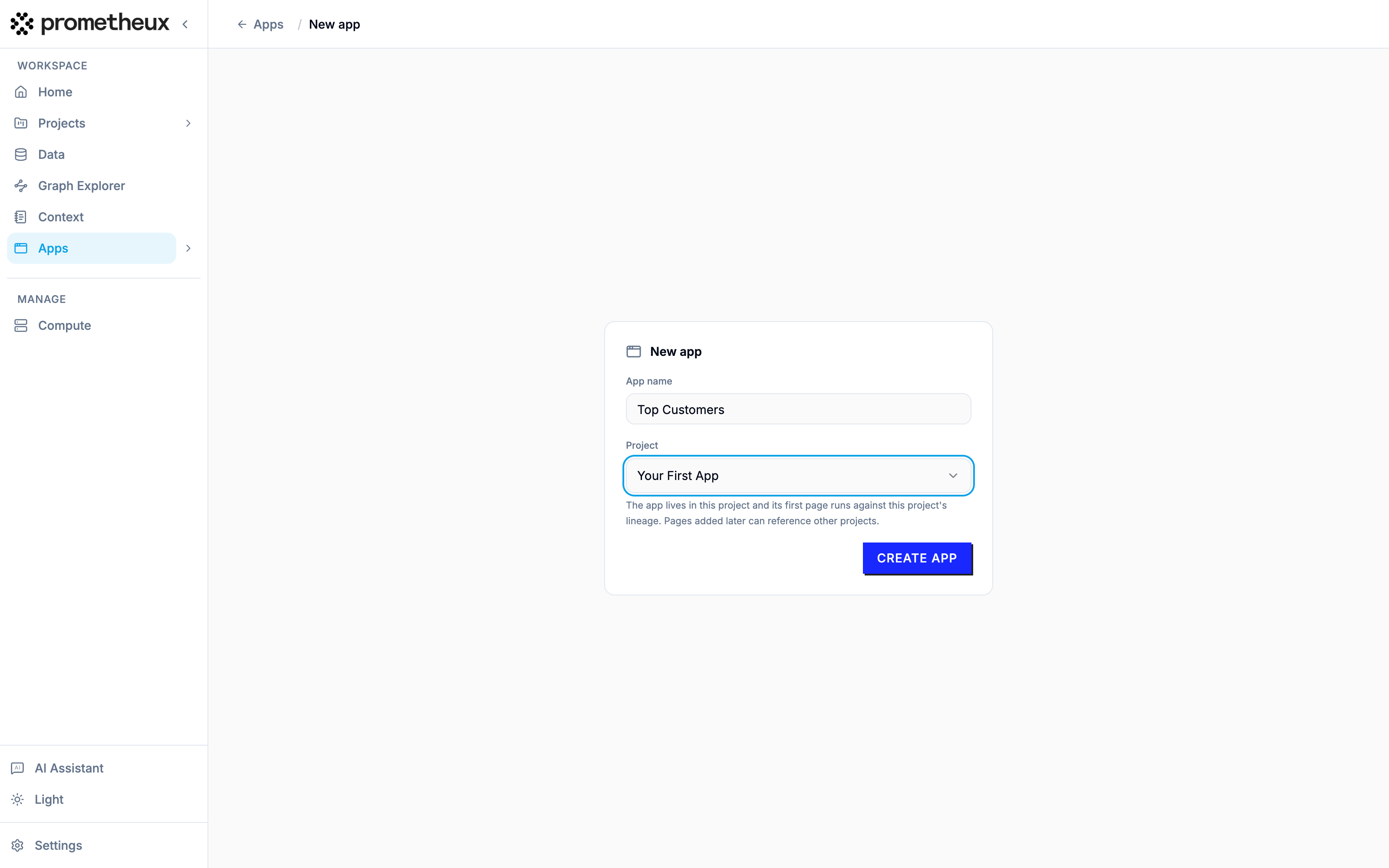 You land in the App Editor with an empty app: one page, one empty section.
3. Add a run group
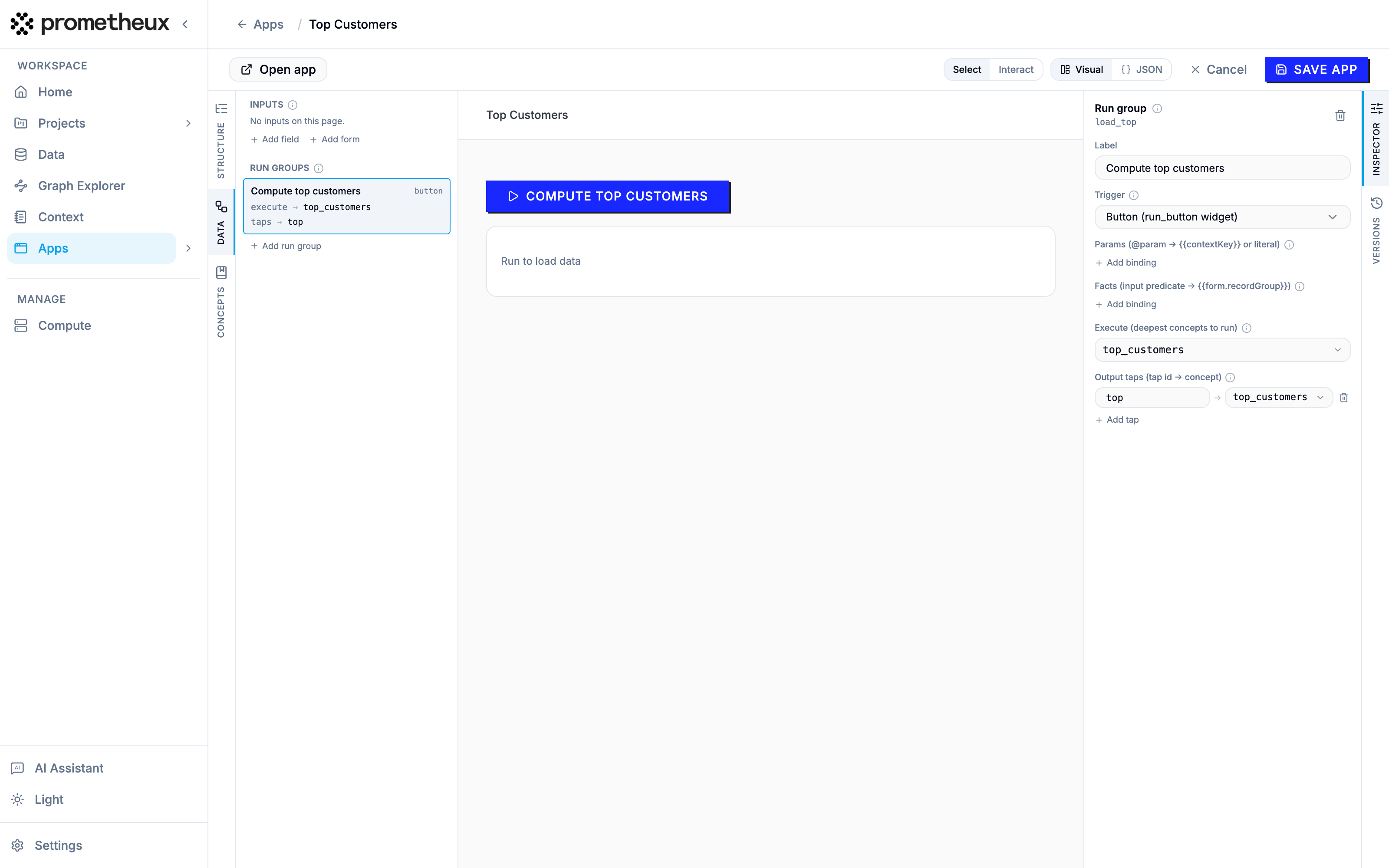
A run group says what to execute and when. This app needs exactly one:- Open the Data panel in the left rail and add a run group.
- Set its trigger to
button— it will run when the user clicks a button. - Under execute, add
top_customers. This is the concept the button runs; executing it computes its whole upstream lineage, includingcustomer_totals. - Add an output tap on
top_customersand give it the idtop. Taps are the named handles widgets read from.
4. Add the two widgets
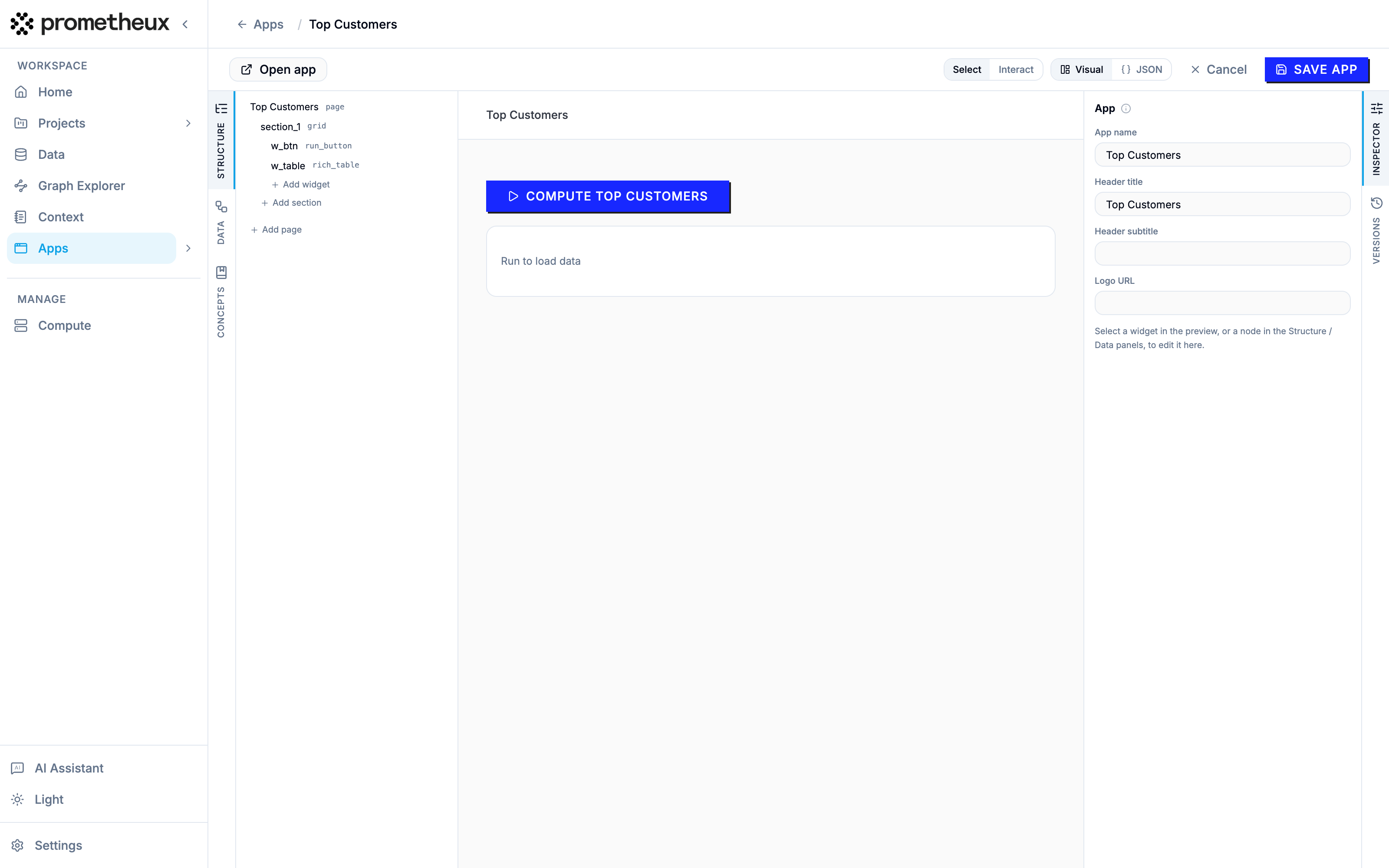
In the Structure panel, add two widgets to the section:- A run button bound to your run group. This renders the button that fires it.
- A rich table bound to the output tap
top. This renders the results.
5. Save and run
Click Save app. The definition is validated against your ontology — if you typo’d a concept name, you get an error now, not at runtime. Then click Open app (or find it in the Apps catalog): you’ll see your button; clicking it runs the concept and the table fills with the customers over 1,000.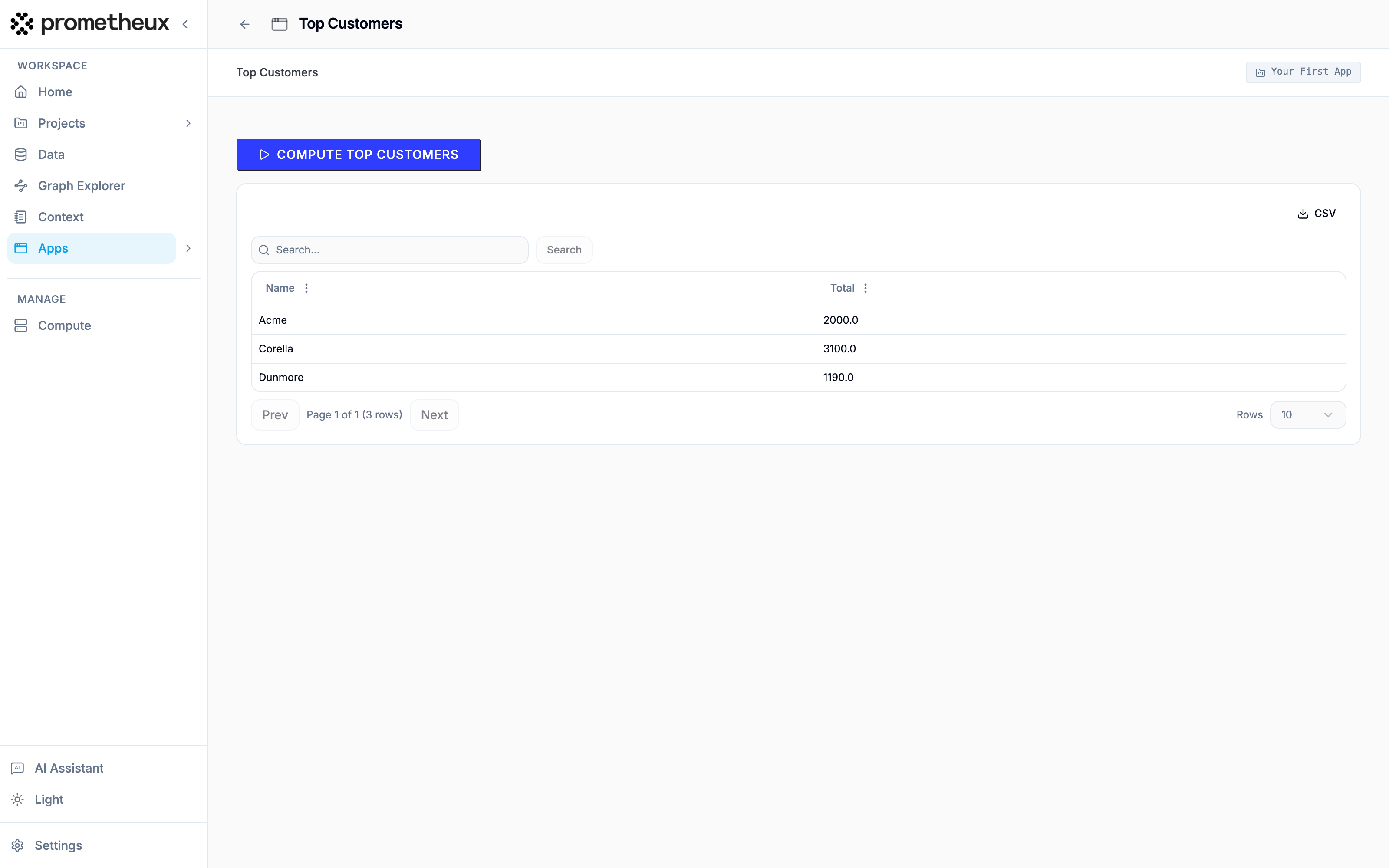
The whole app as JSON
The editor also has a JSON view showing the definition you just built visually. It looks like this:top_customers and exposes the tap top, and the two widgets point at the group and the tap.
Execute vs. display.
execute and outputs don’t have to name the same concept. One run computes the whole upstream lineage, so a tap can read any concept along the way. Add a second tap { "id": "totals", "concept": "customer_totals" } and a second table bound to it — one button click now fills both tables from a single execution.